Putting jobs into the game
ETS2 + ATS
Step by step: set things up once, then bring every job into the game with quick save and quick load — and what helps when it gets stuck.
On this page9
This is how a job from the Dispolotse freight market gets into your game. You set a few things up once. After that, every job takes half a minute.
In 5 steps
1. Stop in the game and switch the engine off.
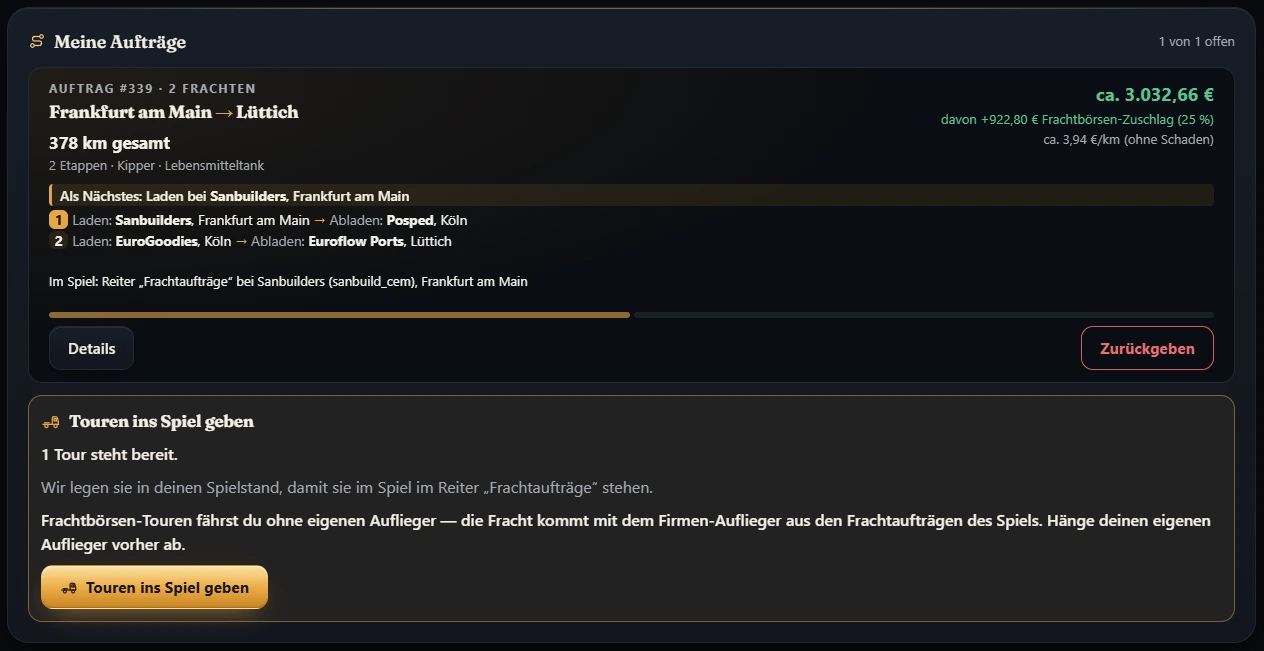
2. In the app, click “Put jobs into the game”.
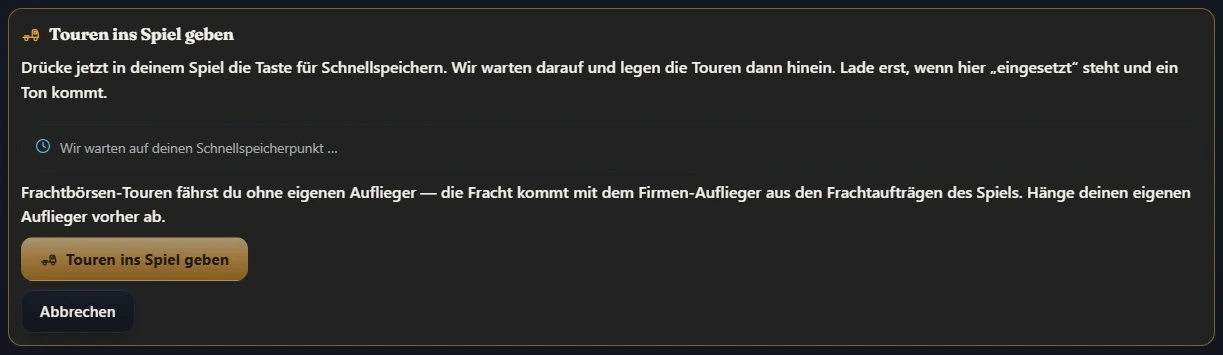
3. In the game, press your quick save key.
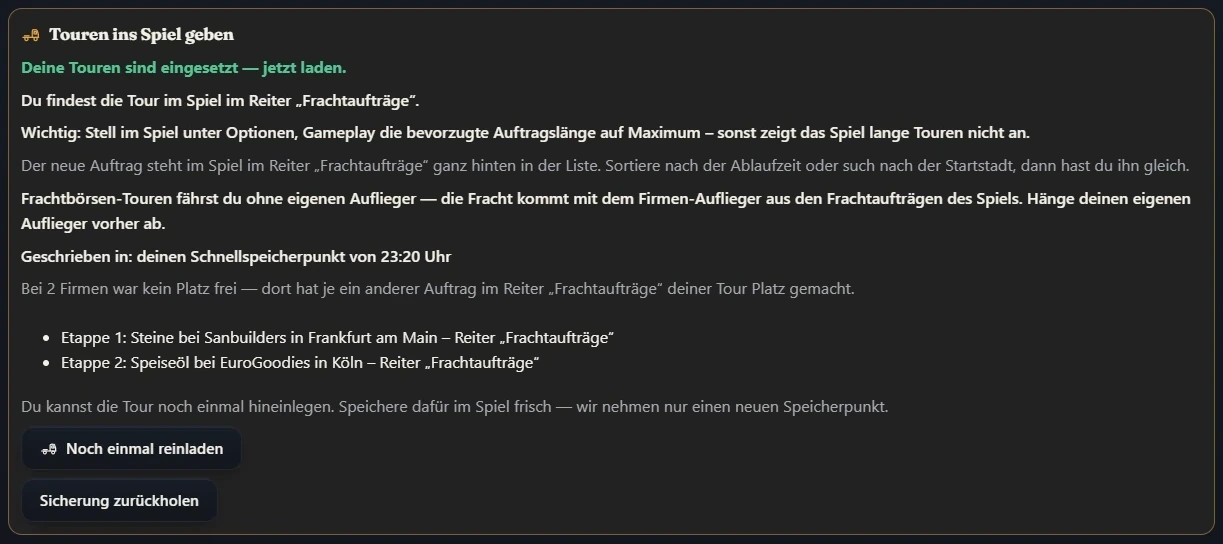
4. Wait until the app shows “placed” and a sound plays.
5. In the game, press your quick load key — done.
Not working? Almost always one of the settings below is missing. Go through them once, in order.
Set up once: you only do this one time#
Four things, then your game is ready:
- Save format 2 — the app does it for you.
- Steam Cloud off — for your career in the game.
- OneDrive: keep the folder on this device — only if you use OneDrive.
- Job length to maximum — in the game.
Save format 2#
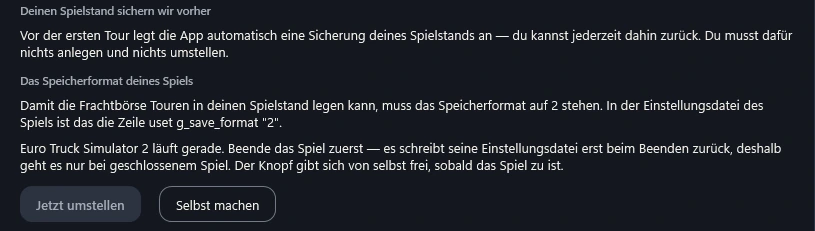
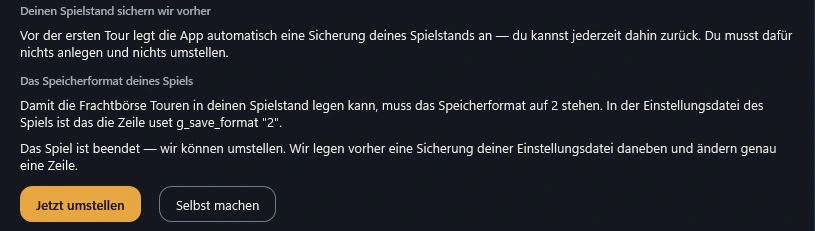
The app can only write into a readable save. For that, your game's save format has to be 2. The app changes it by itself.
- Start the app.
- If your game still uses the old format, you see: “To put jobs into your game, the save format has to be changed. Close the game for a moment – we will then change it automatically.”
- Close the game for a moment.
- The app says: “Save format set to 2 – start the game and quicksave once.”
- Start the game, load your career and do one quick save. Done.

⚠️ The app cannot change it?
Then the file config.cfg is usually read-only. It is in your Documents in the folder “Euro Truck Simulator 2” (or “American Truck Simulator”). Right-click config.cfg › “Properties” › untick “Read-only”. Or change it in the app under “Settings” › “Save game” with “I'll do it myself”.
Steam Cloud off#
If Steam Cloud is on for your career, Steam puts your old save back. Your job would be gone again without you noticing. That is why it has to be off.
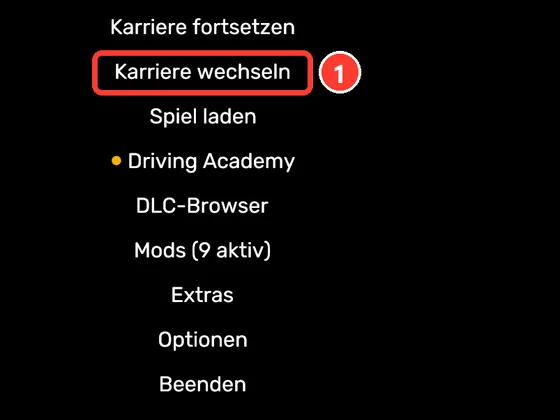
- Start the game. In the main menu, click the second entry (German: „Karriere wechseln“).
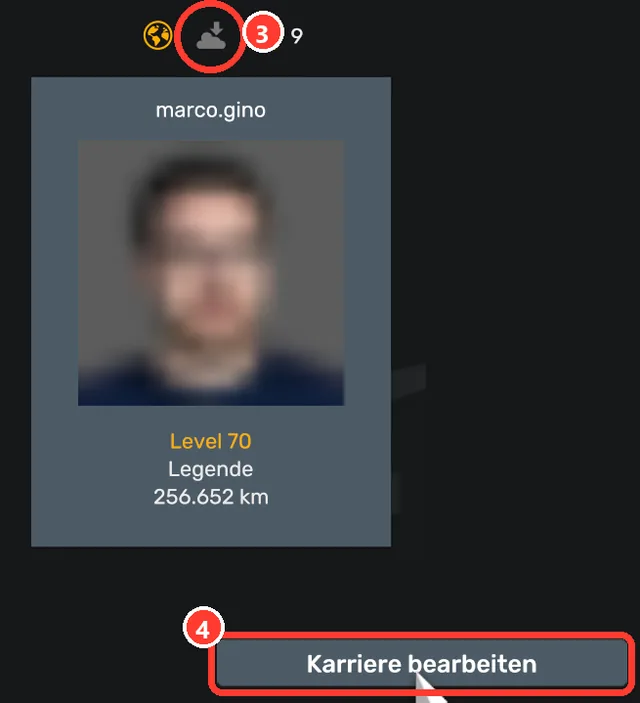
- Click your career.
- Look at the cloud icon above the card: grey = cloud off (good), orange = cloud on.
- If it is orange: click the left button below the cards (German: „Karriere bearbeiten“).
- Untick the Steam Cloud box (German: „Steam-Cloud synchronisieren“). Next to it you then see “disabled”.
- Click Confirm (German: „Bestätigen“).
- Quit the game and start it once more. Now your saves are on your PC.
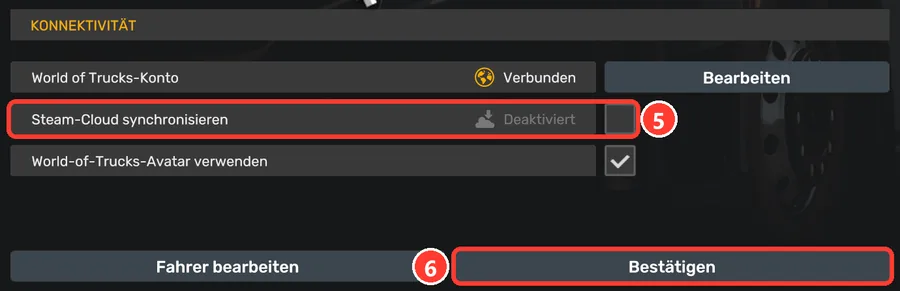
Your saves are kept
Afterwards they live on your PC instead of in the cloud. You do not need to touch Steam's overall cloud setting for all games.
OneDrive: keep the folder on this device#
If you use OneDrive, your “Documents” folder is often kept in the cloud only. Then the save is not really on your PC, and the app does not write into it. You can tell by a blue cloud in File Explorer.
- Open File Explorer (Windows key + E).
- Find the folder “Documents”. If your game folder is somewhere else: take the highest folder with a cloud icon above “Euro Truck Simulator 2”.
- Right-click that folder.
- Choose “Always keep on this device”.
- Wait until every file shows the green tick.
- Save again in the game and click “Put jobs into the game” in the app once more. You do not need to restart the app.
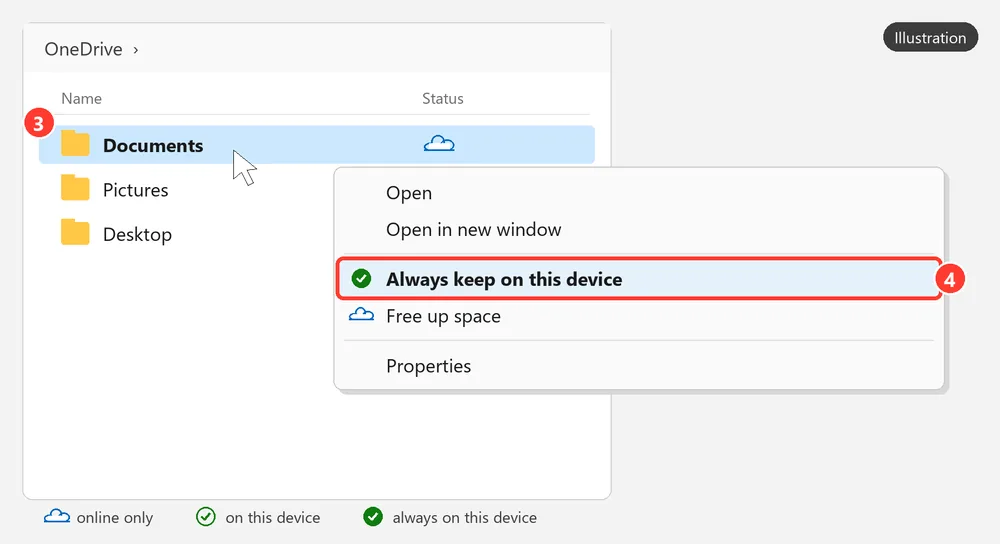
⚠️ Pinning only the “Euro Truck Simulator 2” folder is not always enough
If the cloud setting sits on “Documents”, the lock stays. So take “Documents” itself (or the highest folder with a cloud).
Job length to maximum#
If the preferred job length is too short, the game does not show long jobs at all. Set it all the way to the right once.
- Start the game and load your career.
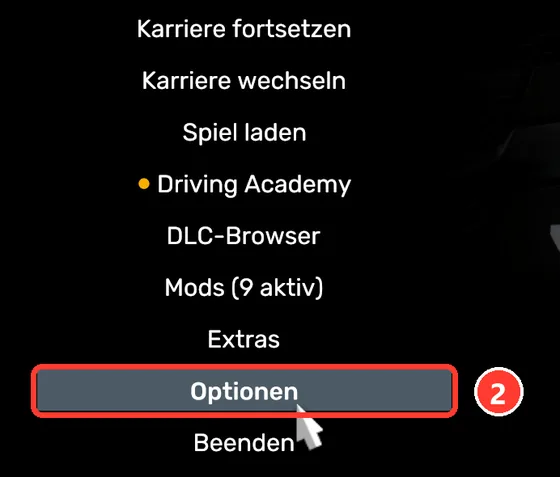
- In the main menu, click Options (German: „Optionen“).
- In the bar at the bottom, click Gameplay.
- Move preferred job length (German: „Bevorzugte Auftragslänge“) all the way to the right. It then shows 150 %.
- Quit the game once normally through the menu. Only then does it save the setting.

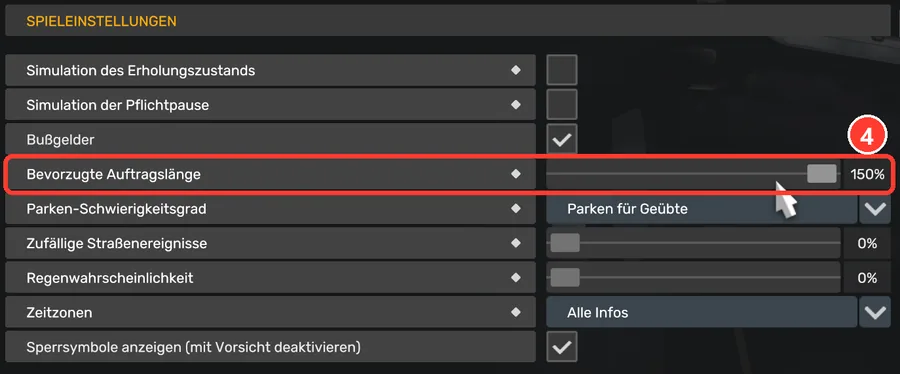
The game remembers this per career. If you have several careers, set it in each one.
Every time: bring the job into the game#
- Stop. Stop in the game.
- Engine off. While the engine runs, no job goes into the game. This applies in single player and in TruckersMP.
- Unhitch your own trailer. Freight market jobs are driven with the company's trailer.
- Click. Under “My jobs”, click “Put jobs into the game” – in the app or in the browser (see below).
- Quick save. Press your quick save key in the game. Which one that is: see Your keys.
- Wait. The app shows “Waiting for your quick save …”. Then it puts the job in. A sound plays and you see “jobs placed — load now.”
- Quick load. Only now press your quick load key in the game.
- Take the job. The app says “The game has been updated”. Find the job as in Find it in the game and take it before you save again.
In the browser too: with app version 0.6.69 or newer you can also click “Put jobs into the game” in the browser under “My jobs”. The Dispolotse app on your PC then takes over the rest: as soon as your truck stands still and the engine is off, it puts the jobs in, and the card in the browser tells you when to quick save and quick load. If the app is not running, the request waits for a while – just start it. Nothing happens without your click, and nothing goes into the game while you drive.
⚠️ Do not load too early
Only load once “placed” shows and the sound played. If you save while the app is still writing, it writes nothing — then simply press again.
An autosave does not count. It has to be your own quick save.
Your quick save and quick load keys#
Many players have changed their keys. So press your keys, not just any.
Dispolotse reads your keys by itself and shows them to you.
- If the app names your key (for example “Num 0”), press exactly that one.
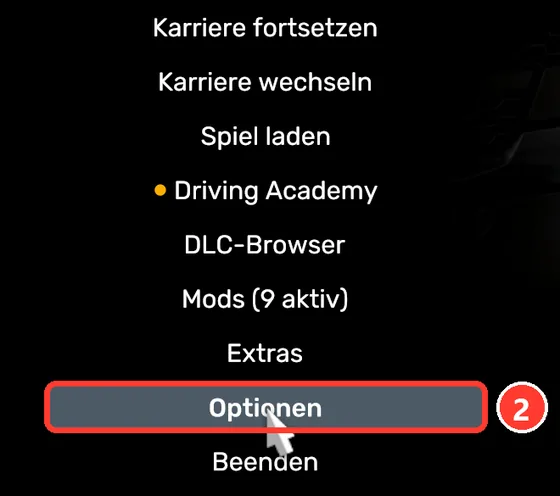
- Otherwise look in the game: in the main menu, click Options (German: „Optionen“).
- In the bar at the bottom, click Keys & Buttons (German: „Tasten und Knöpfe“).
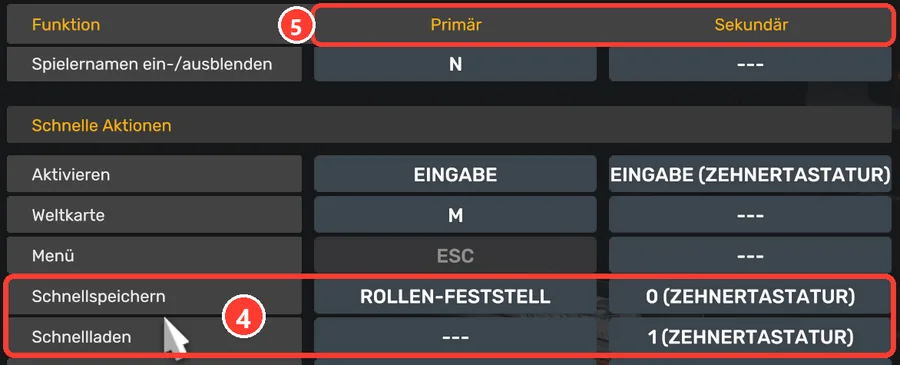
- Scroll to the section Quick actions (German: „Schnelle Aktionen“). There you find the rows quick save and quick load (German: „Schnellspeichern“, „Schnellladen“) — your keys are next to them. It is faster if you type quick into the search box at the top (German game: schnell).
- Every row has two columns: Primary and Secondary (German: „Primär“, „Sekundär“). Both keys work, use the one you like better. “---” means: no key is set here.
- If both columns show “---”, set a key: click the field, then press the key you want.

Loading also works without a key: in the game menu choose load game and then your quick save.
Find it in the game#
- In the game, open the freight market tab where the company jobs with the company trailer are (German: „Frachtaufträge“) — not the cargo market (German: „Frachtmarkt“).
- The app tells you where the job is, for example: “Leg 1: steel at company X in city Y – tab “Freight Market””.
- The new job is usually at the very end of the list.
- Sort by expiry time or search for the start city. Then you have it right away.
- Take it. Only then save again.
A Dispo leg? In the game it is called “Empty Pallets” – why, and what you really carry: How your Dispo leg gets into the game · Why “Empty Pallets”?
Job gone after saving?
If the app says “… is no longer in the freight market of your game”, click “Put it in again”. Save afresh in the game for that.
When it does not work: message and fix#
The app always tells you why it did not work. Find your message here:
| The app says … | What is going on | How to fix it |
|---|---|---|
| “Your engine is still running …” | The engine is running. | Stop, engine off, click again. |
| “Your truck is on the road right now …” | You are still driving. | Stop and go to the game menu. |
| “No quick save arrived …” | No quick save came after the click. | Click again, then press your key. |
| “No quick save found …” / “We cannot find a quick save in your profiles yet …” | There is no quick save yet. | Do one quick save in the game, then click again. |
| “That was a save your game created on its own …” | That was an autosave. | Do your own quick save. |
| “Several save games were written at once …” | Several saves at once. | Do one single quick save. |
| “For this, your game save format has to be set to 2 …” | Save format is not 2 yet. | See Save format 2. |
| “… whether your profile is synced with Steam Cloud …” / “This profile lives in Steam Cloud …” | Steam Cloud is on or unclear. | Steam Cloud off, then restart Steam and the game. |
| “Windows keeps your save games in the cloud only …” | OneDrive keeps the folder online only. | OneDrive: keep the folder — take “Documents”. |
| “A job is running in your save game …” | A job is still running in the game. | Deliver it first, then save and click again. |
| “That save belongs to a different truck …” / “… does not match your profile …” | Saved in the wrong career. | Quick save in the career you are driving right now. |
| “You don’t own a truck in this game profile yet …” | New career without your own truck. | Buy a truck in the game first, then again. |
| “The game was saved while we were still putting the job in …” | Saved or loaded too early. | Click again, quick save, load only after the sound. |
| “We cannot find a profile folder of your game …” | The app cannot find your game folder. | Start the game once and quick save. Otherwise choose “Choose profile folder” in the setup and restart the app once. |
| “Your save game could not be written …” | File read-only or held open by a program. | Remove read-only, pause sync programs for a moment, try again. |
| “The app cannot reach our server right now.” / “The app did not answer in time …” | A short connection hiccup. | Wait a moment, click again. |
| “One job was not placed: your save game does not have the destination company …” / “… does not have the start company …” | That company or city does not exist in your game — usually it belongs to a DLC you do not own. Your other jobs are in anyway. | Give the order back under “My jobs” and take another one. The freight market now only shows you jobs whose cities match your map DLCs – an order you took earlier may still have such a city, though. |
| “… its cargo is not available anywhere in your save right now …” | Your game does not offer this cargo anywhere right now. | Give the order back and take another one. |
| “This order does not fit your game right now …” | Before accepting, the app checked: one leg cannot be put into your save. Nothing has happened. | Take another order. |
| “… is not offering any jobs there right now …” / “We could not use any of the offers …” | The company has no free offer in your game right now. | Sleep once in the game or drive a bit, then quick save and click again. |
| “Putting the jobs in did not work …” | Something else. | Save again, click again. Still not working: “Report a problem”. |
Job loads but is not in the game? Check the job length and look in the freight market tab, not in the cargo market.
Best start the app before the game. If the game is already running when the app starts, give it a few seconds until it has recognised your game.
If you are stuck, write to us via “Report a problem” in the app or in the driver area — with a screenshot of the message; we answer by e-mail. From 16 also via a ticket on our Discord: Getting help. More questions: Questions and answers.
Related
- ETS2 + ATSDriving Dispo legsTake legs "for you", drive them in the game and hand the goods over to the next driver.For drivers
- ETS2 + ATSWhy “Empty Pallets”? – Dispo jobs in the gameIn the game every Dispo job is called “Empty Pallets”. Here is why – and what you really carry.For drivers
- ETS2 + ATSGetting help: tickets & supportHow to get help: “Report a problem” in the app (reply by e-mail) or, from 16, a ticket on our Discord – what happens next, voice help, support in English and what you should never send.For drivers