Freight market and jobs
ETS2 + ATS
Find, accept, load into the game and return jobs.
On this page7
This is where you get your work — jobs right in your game world (Europe in ETS2, the USA in ATS), each with start, destination, cargo, revenue and deadline. In the app you will find it on the left under "DRIVING" › "Freight market".
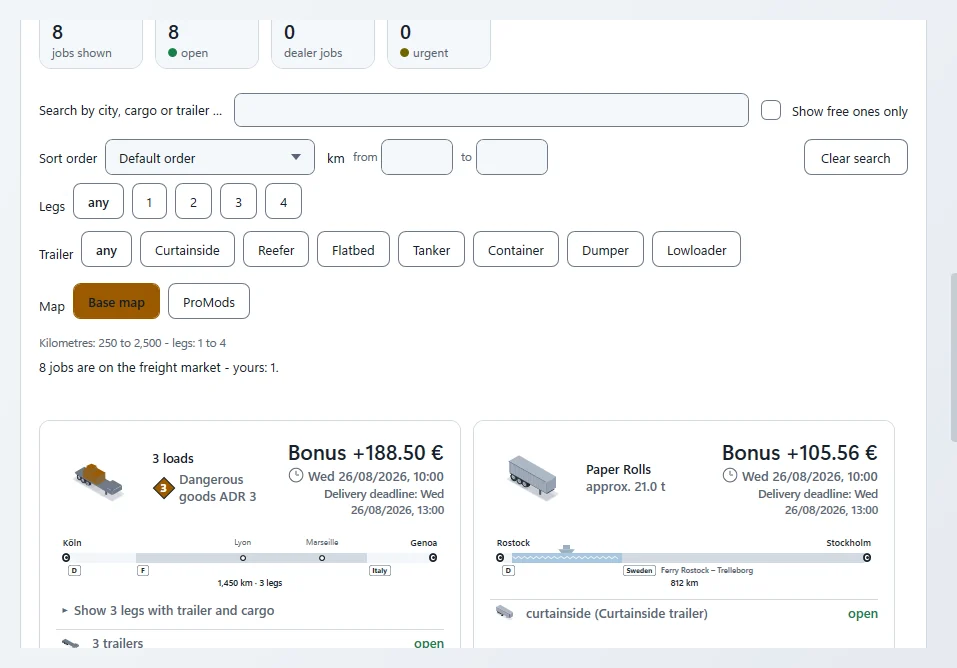
What a job tells you#
- Route — "Job … from … to …", with legs and kilometres
- Cargo — approximate weight and the trailer type
- Revenue gross — plus a possible bonus, for example a market bonus
- Deadline — "Expires on …" and the delivery date
- Tags such as "Urgent", "ADR", "Ferry" or "Dealer"
- Map — whether the job needs the base map or certain regions
- Assumed — for example "Assumed: rented truck"
Where the jobs come from#
The server builds the jobs from what the app knows from the saves of the drivers: which company in which city offers which cargo, and with which trailer. Where that information is missing, no job is created — so the freight market only holds what can really be loaded into the game. You need no mods for it, and the jobs can be loaded on TruckersMP too.
Search, filter, sort#
At the top there is a search box for city, cargo or trailer. Add filters by kilometres (from / to), by legs and by trailer type, and "Show free ones only". "Clear the search" resets everything.
You can sort by revenue, distance, deadline or bonus — both ways round — and also "Company orders first" and "Automatic orders first".
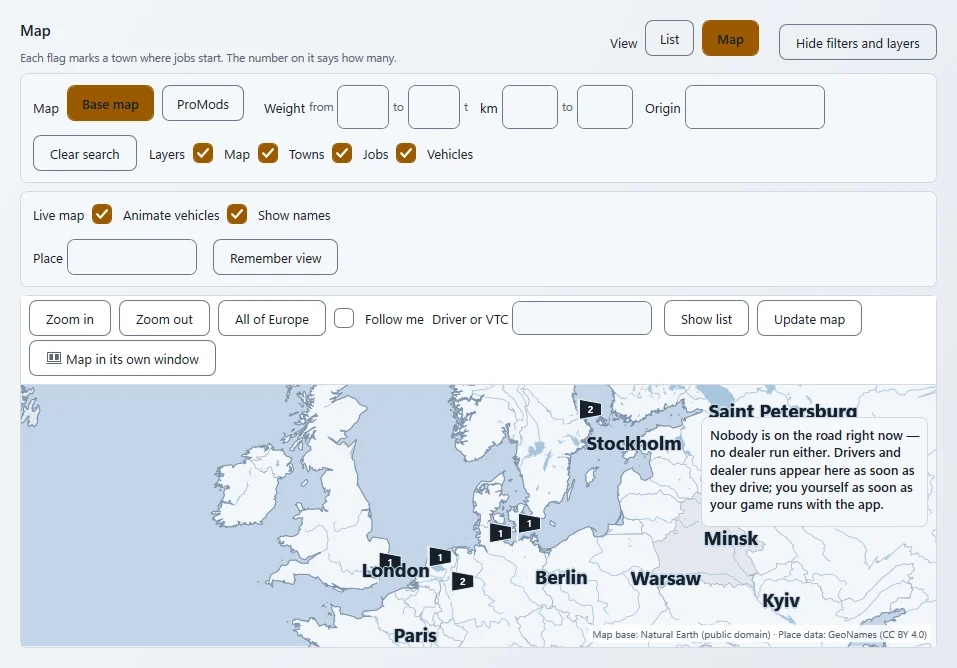
With "View" you switch between List and Map: on the map, a flag above each start city shows how many jobs start there.
Accepting a job#
Click "Accept" and confirm — after that nobody else can take the job. A "Job accepted" window tells you where you load, what you load, where it goes and how to find it in the game. Your jobs are listed at the top under "My orders"; how many you can hold at once is shown by the line "You hold … of at most … jobs". If you have no truck of your own, accepting starts the rental contract and the app asks you for the rate (see Renting).
Without your own trailer
Freight-market jobs are driven with the client's trailer from the game's own freight market. Detach your own trailer first.
Getting it into the game#
"Put jobs into the game" places your accepted jobs in your save. The order: stop and switch the engine off, click "Put jobs into the game" in the app, quick save in the game, wait a moment, quick load, take the cargo. It works the same in single player and on TruckersMP — in both the engine has to be off. The whole routine, step by step, is in the getting started guide.
If your save does not offer the cargo itself right now, the app builds the offer from the freight-market data. The distance in the game is always the one from the freight market. If a leg still does not fit your save, the app names the leg, cargo, company and city and writes nothing — your save stays unchanged.
Legs#
Some jobs have several legs. The next open leg is matched automatically when a job is reported; once it is done, the app says so — including the bonus. If a job you drove does not fit the leg, it is still reported and paid, just without the bonus.
Giving back and cancelling#
"Give it back" hands a job back. Legs you have already driven stay paid. A few cancellations a month are free of charge — the app shows "Cancellation … of … free of charge this month"; after that a cancellation costs something, and the app tells you what beforehand.
Expired orders: if the delivery date of an accepted order has passed, the contract penalty was already booked — the amount is in your account statement. With "Remove job" you take it off "My orders". Nothing more is charged; the open legs do not go back to the market, because the delivery date has passed.
Jobs from another save are paused: carry on driving them in the matching save — the app picks them up again.
Related
- ETS2 + ATSOwn truck, rental, loanOwn trucks and trailers, rental and loan — what the app shows.For drivers
- ETS2 + ATSFirst start and first jobSet up the app, telemetry, prepare your save and drive your first job step by step.For drivers
- ETS2 + ATSDriving and tachographThe driving page, driving times and the tachograph with the statement of every job.For drivers