Driver area in the browser
ETS2 + ATS
The driver area in the browser: signing in and what you see there.
On this page5
Your company lives in the browser too: inbox, bank account, fleet, tachograph and live map — on your computer, tablet and phone, with the same account as in the app. You still drive in the game, with the Windows app running in the background; the driver area is for everything in between: a quick look, taking a job, sending money.
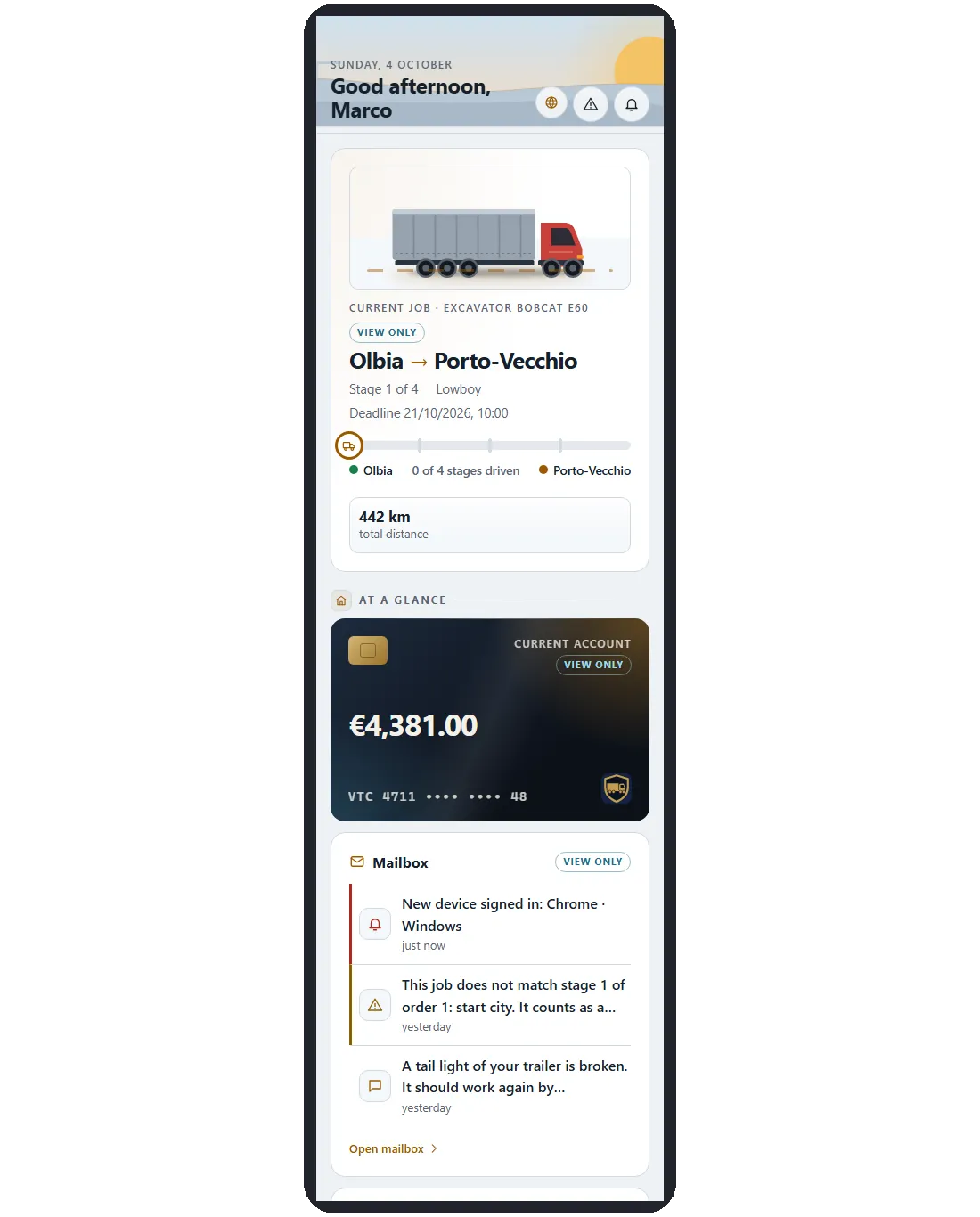
Opening step by step
The driver area opens step by step. If it is not open for your account yet, the sign-in page tells you: “The driver area is not open yet.” Everything is already there in the Windows app.
Signing in#
Open the driver area (dispolotse.de/fahrer) and sign in — with the same e-mail address and the same password as in the Dispolotse app. There is no separate browser account. No account yet? Get the app first and register there.
- E-mail and password — Type them in and tap "Sign in".
- Code from the e-mail — The first time you sign in with a browser, we send you a 6-digit code by e-mail. Enter it and tap "Confirm". The code is valid for 10 minutes and only once; "Send a new code" gets you a fresh one — the old one then stops working.
- Done — You stay signed in on this device and land on the overview.
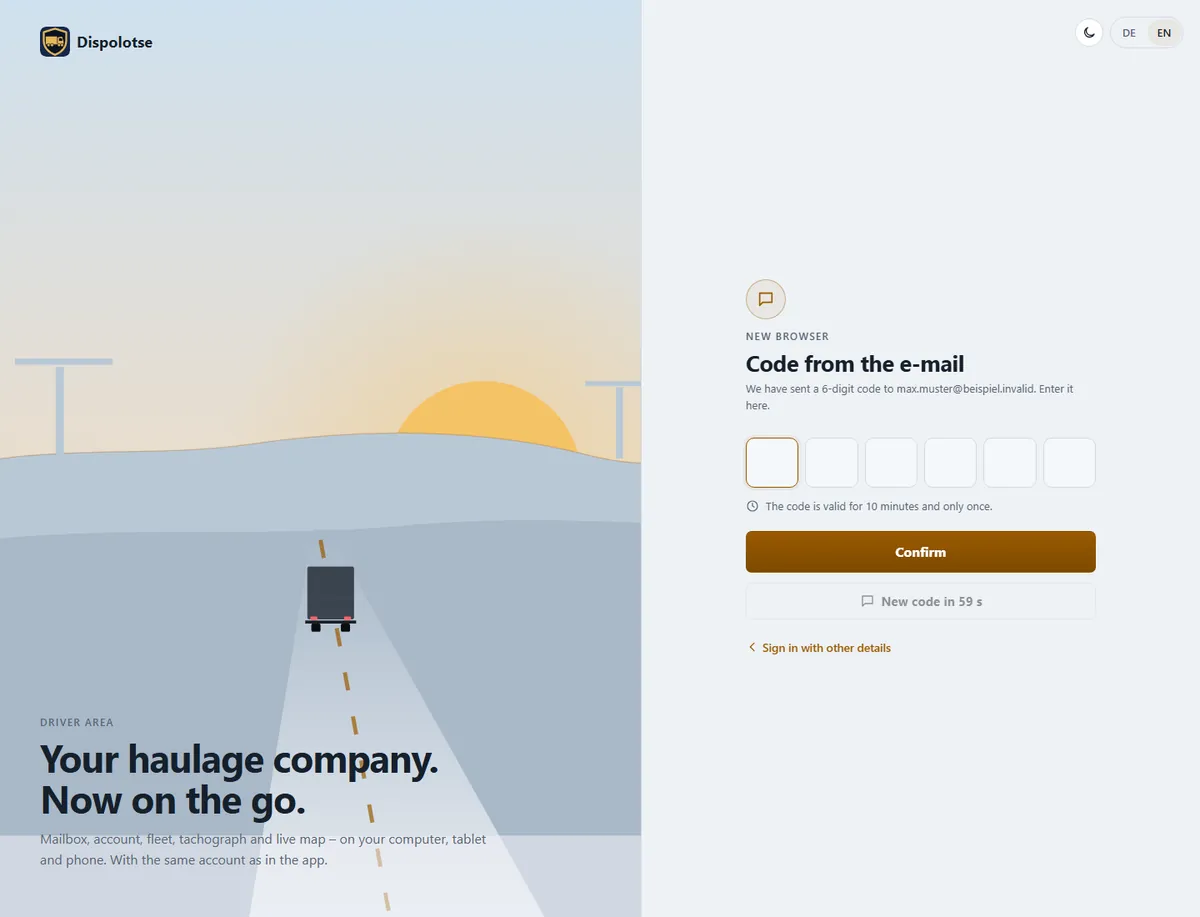
If it does not work#
- E-mail address not confirmed yet: open the link in the welcome e-mail first.
- Too many attempts: the sign-in page tells you how long to wait.
- Forgot your password? On the sign-in page, "Forgot password?" — you get a link to set a new one.
Sign in with the app — no password#
If you are signed in to the Windows app on your PC, you can sign in your phone (or another browser) without a password: the browser shows you a code, and the app on your PC confirms it. The order does not matter — just do both within 2 minutes.
- In the browser — Open the driver area (dispolotse.de/fahrer) and tap "Sign in with the app" on the sign-in page. Enter the e-mail address of your account and tap "Show code". The code now stands in large letters on that page (six characters, the time runs down below it).
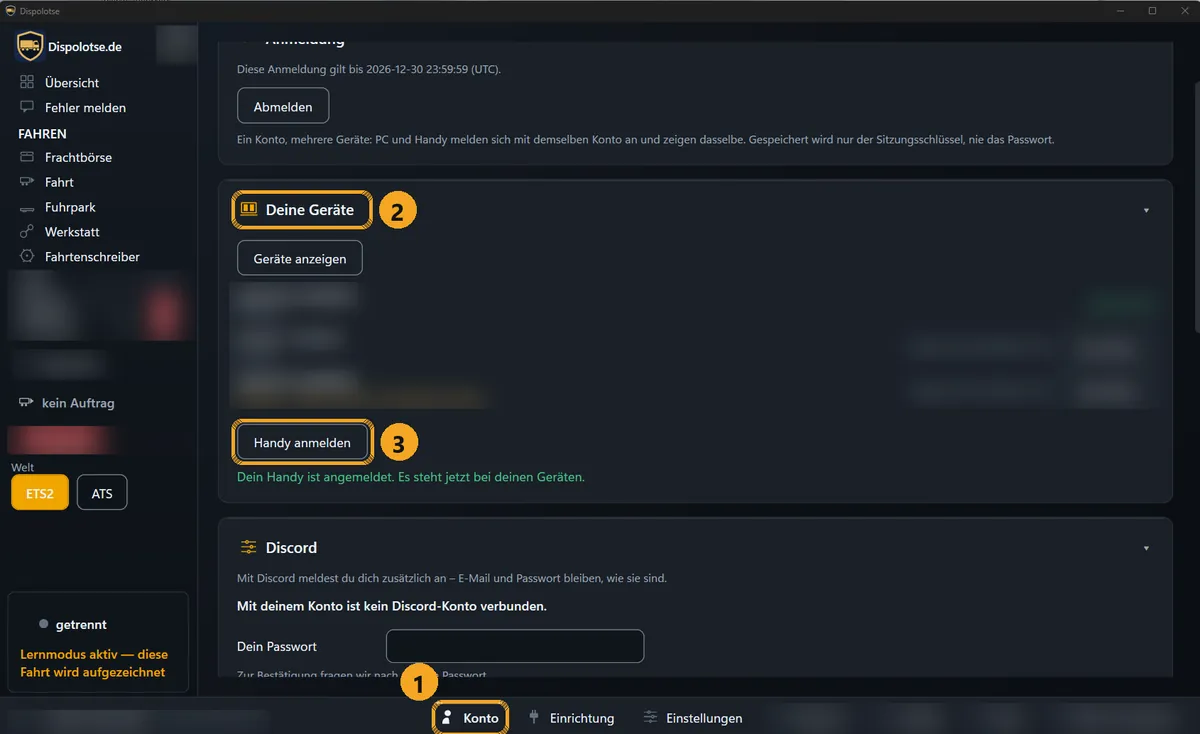
- In the Windows app — Open "Account" and click "Sign in a phone" under "Your devices". If the browser already shows the code, the app asks for it right away; otherwise it waits until your browser reports in.
- Confirm — The app shows "Confirm the sign-in on your phone?" with browser, device and country. Type the code from the browser into the app and click "Yes, sign in". A few seconds later the browser is signed in.
This is where you type the code in the app:
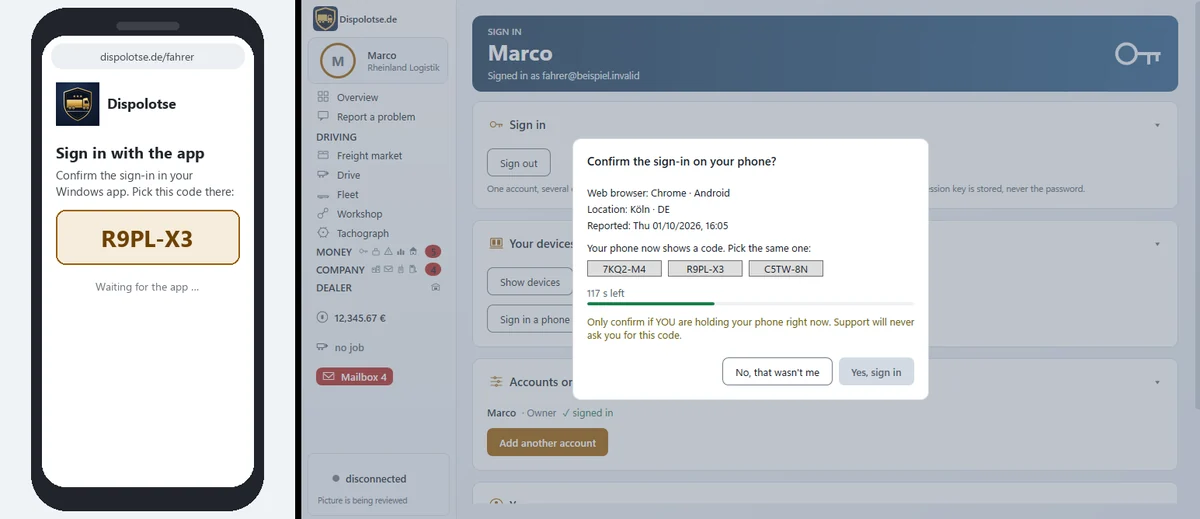
Only confirm what you see yourself
Only type the code in if you yourself have the browser in front of you that shows it. Support will never ask you for this code. If you do not know the browser in the app's question, click "No, that wasn't me".
Nothing happens?
- The app does not ask for the code: in the app, press "Account" › "Your devices" › "Sign in a phone" while the time in the browser is still running.
- "Time is up" in the browser: tap "Get a new code" and press "Sign in a phone" in the app once more.
- Two browsers at once: if two browsers report in for your account, the sign-in stops for your safety. Start again in one browser.
- Wrong code: after three wrong codes this sign-in is over — get a new code in the browser.
- No room for another device: the browser shows your active devices; sign one out and it continues.
What works in the browser#
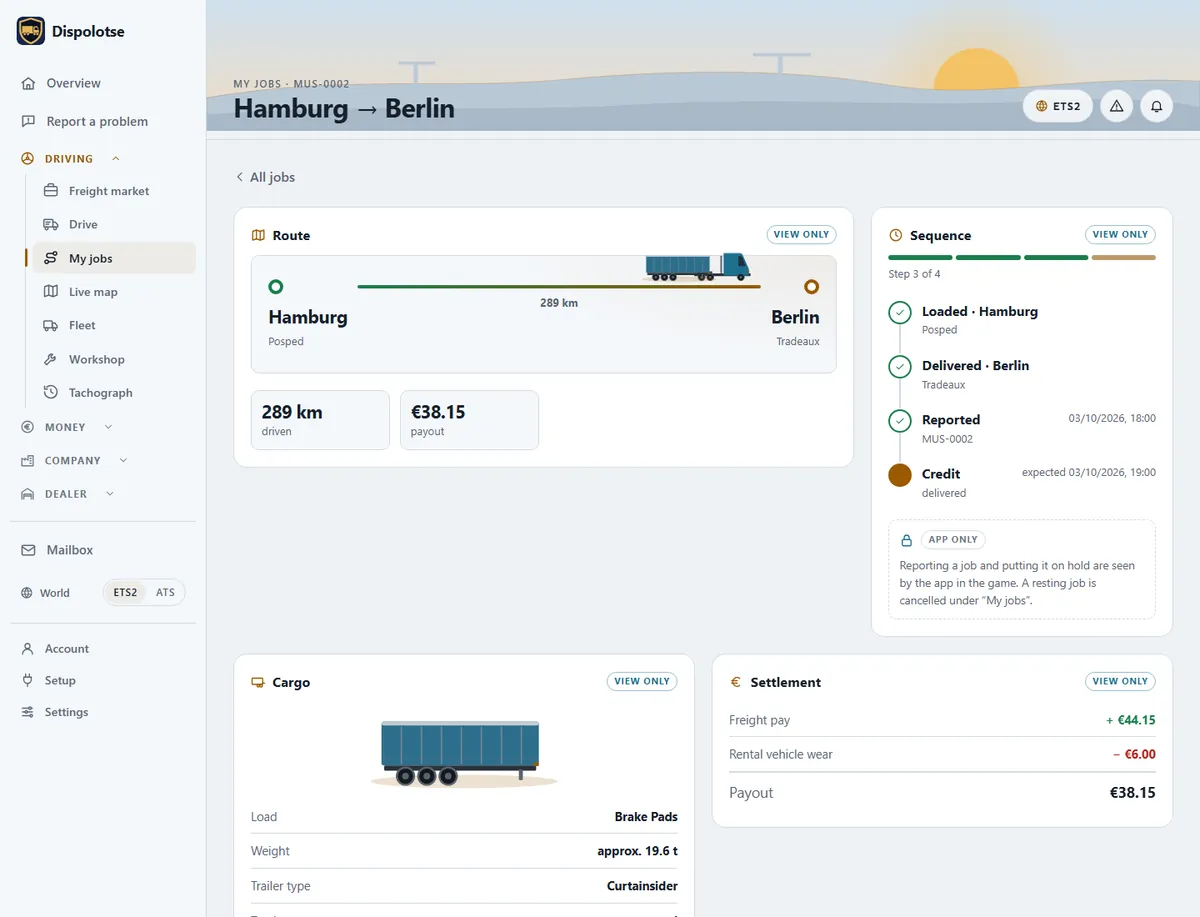
In the driver area you do everything just like in the app: freight market, jobs, fleet and workshop, bank and account, my life, inbox, company, statistics, report a bug and your account. Only the driving itself runs through the Windows app in the background while you play — it records the job and reports it.
| Where | What |
|---|---|
| In the browser | Everything you can set, view or do in the app — on a PC, a tablet or a phone. |
| Page "Drive" | Your second screen while driving: put your phone or tablet next to the keyboard or open the page on a second PC, and you see the running job without leaving the game. |
| Only in the Windows app | The driving itself: telemetry, recording and reporting the job from the game. |
The answer to a report from "Report a bug" arrives over the radio.
Asked again, to be safe
For a bank transfer, a new password, a new e-mail address and deleting your account, the driver area asks for your password once more.
Several devices#
You can use the Windows app and the driver area at the same time — on your PC, your phone and your tablet. Every signed-in browser counts as a device of its own. You always drive with the Windows app; the other devices show you your company.
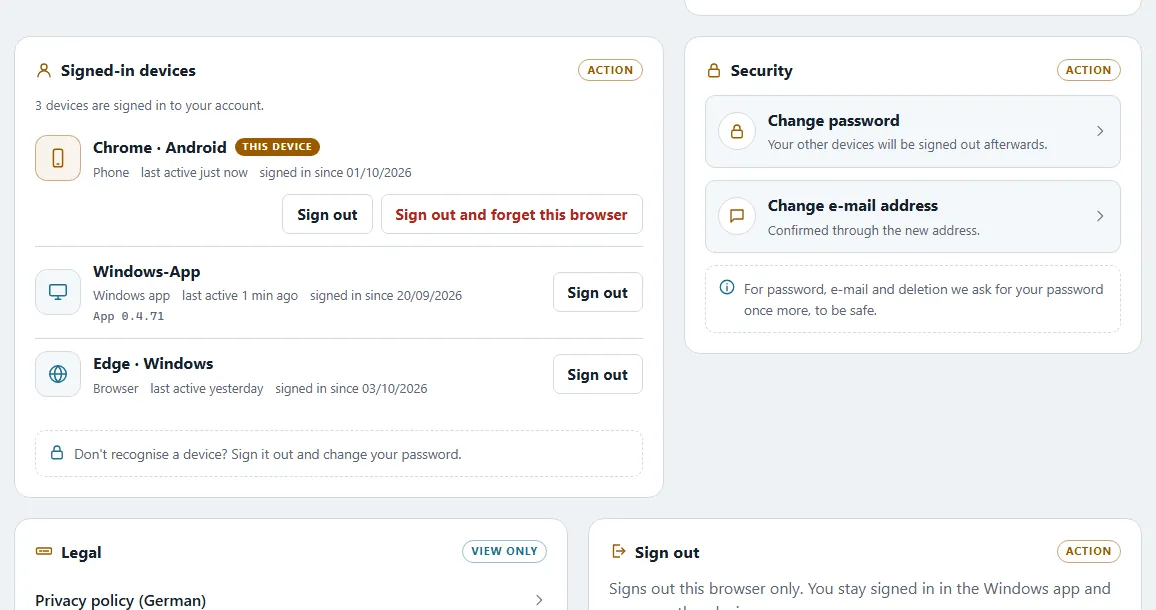
- Everything in view: under "Account & devices" › "Signed-in devices" you see every device with its kind (Windows app, browser, phone), “signed in since” and “last active”. You can sign out any of them there.
- New device: every new sign-in is reported in your inbox.
- No free place left? Then the sign-in page shows your active devices. Sign one of them out — then you can continue.
- Sign out here signs out this browser only. You stay signed in in the Windows app and on your other devices.
- Changed your password? Then your other devices are signed out.
A device you do not recognise?
Sign it out and change your password.
As an app on your phone#
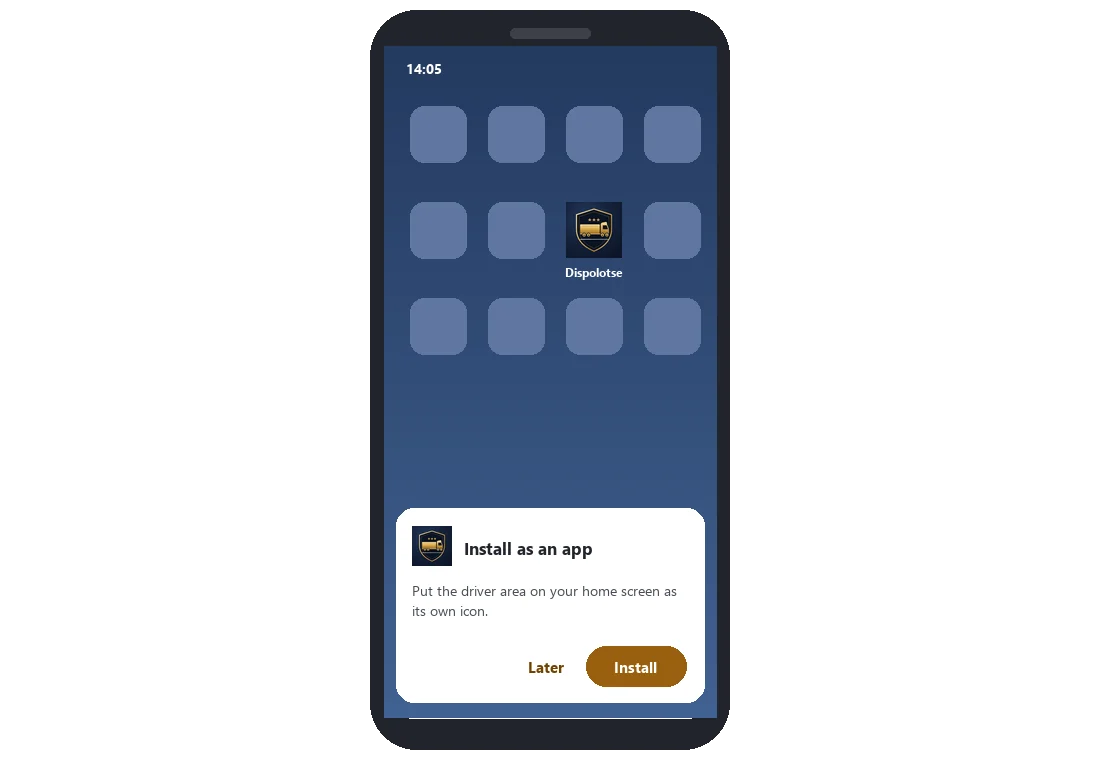
You can put the driver area on your home screen like an app — with its own icon, in full screen. Nothing to download from a store.
Android#
- Open the driver area — In your phone's browser, for example Chrome.
- Install — On your first visit the card "Install as an app" appears — tap "Install". Later you find the same under "Account & devices" › "As an app".
iPhone and iPad#
Just like on Android: sign in to the driver area — then the card “Install as an app” appears. Tap “Install” and the driver area shows you the steps for your browser. Later you find the same under “Account & devices” › “As an app”.
In Safari (the browser with the blue compass) it works like this from iOS 26 on (iOS 27 too):
- Open the menu — Tap “•••” beside the address bar, then “Share”. If you picked the “Bottom” or “Top” tab layout in the Safari settings, you see the Share icon (square with the arrow pointing up) directly — tap it.
- Add to Home Screen — Scroll down the list and choose “Add to Home Screen”.
- Add — Leave “Open as Web App” switched on and tap “Add” — done.
Up to iOS 18 you tap “Share” (square with the arrow pointing up) at the bottom right away, choose “Add to Home Screen” and tap “Add”.
Chrome, Edge or Firefox on the iPhone#
- Chrome — Tap the Share icon at the top right next to the address bar, scroll down, choose “Add to Home Screen”, then “Add”.
- Edge — Tap the menu (three lines) at the bottom right, then “Share” and “Add to Home Screen”, then “Add”.
- Firefox — Tap the Share icon in the address bar (or the menu at the bottom and “Share”), then “Add to Home Screen” and “Add”.
No “Add to Home Screen” in sight?#
- Opened from another app? Discord, WhatsApp, Instagram and other apps show web pages in a window of their own — the entry is always missing there. Tap the compass icon or “Open in Safari” (in some apps in the “•••” menu). Can't find it? Open Safari yourself and go to the driver area there.
- Chrome, Edge or Firefox? If it does not work there, use Safari — it always works there.
- Entry missing in Safari too? Scroll to the very bottom of the Share list, tap “Edit Actions” and add “Add to Home Screen”.
- The icon opens Safari instead of the app? Delete the icon and add it again — with “Open as Web App” switched on.
- After adding: if the app asks you to sign in, simply sign in once more.
New version
When a new version of the driver area is ready, "New version" appears at the top — tap "Reload" and you are up to date.
Safe and lean#
- No advertising cookie, no tracking pixel. Only a session cookie while you are signed in.
- Without a connection the driver area only shows a notice. Your account and your figures are on the server — nothing of them is stored on the device.
- The language belongs to your account; light/dark only to the browser where you set it.
- The legal texts are available in German only; the German version is legally binding.
Related
- ETS2 + ATSApp tourA walk through the app overview and menu.For drivers
- ETS2 + ATSA real economy – money, costs and lifeIn Dispolotse every job pays into your bank account, while diesel, tolls, rent, taxes and life cost money – an economy like real trucking life, free and with game money only.For drivers
- ETS2 + ATSFreight market and jobsFind, accept, load into the game and return jobs.For drivers