Setting up Discord webhooks
ETS2 + ATS
Step by step: create a webhook in your Discord, enter the webhook URL in Dispolotse, choose the events and check it with a test message.
On this page9
- What you need
- Step 1: choose a channel and open “Edit Channel”
- Step 2: Integrations → Webhooks → New Webhook
- Step 3: give it a name, save, copy the webhook URL
- Step 4: enter the webhook URL in Dispolotse
- What can be posted
- Step 5: send a test message
- Safety: the webhook URL is like a password
- If nothing arrives
Your company can post its messages straight into your Discord: delivered jobs, new members, finished repairs, summaries and more. To do so you create a webhook in Discord – an address through which Dispolotse may write into exactly one channel – and enter that address in Dispolotse. You do not need a bot for this.
Who may do this? In Dispolotse: the owner and anyone in the company with the right “Edit company profile” (see Roles and rights). In Discord: anyone with the “Manage Webhooks” permission on the server – as the owner of the server you always have it.
What you need#
- a Discord server of your own – or the “Manage Webhooks” permission on one
- a text channel for the messages, e.g.
#tours; one per topic is fine too - your company in Dispolotse and the driver area in the browser or the Windows app
It is easiest on a PC: Discord in one window, Dispolotse in the other.
Step 1: choose a channel and open “Edit Channel”#
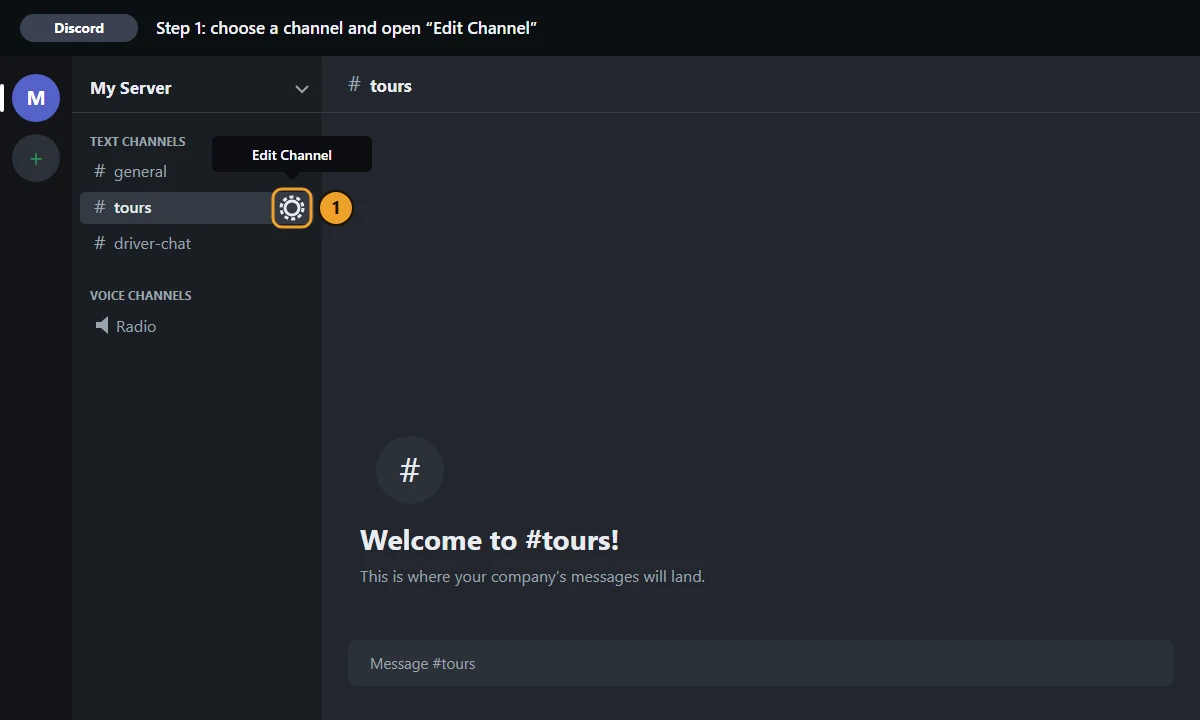
Create a text channel in Discord or take an existing one. Move the mouse over the channel and click the cog “Edit Channel”.
Step 2: Integrations → Webhooks → New Webhook#
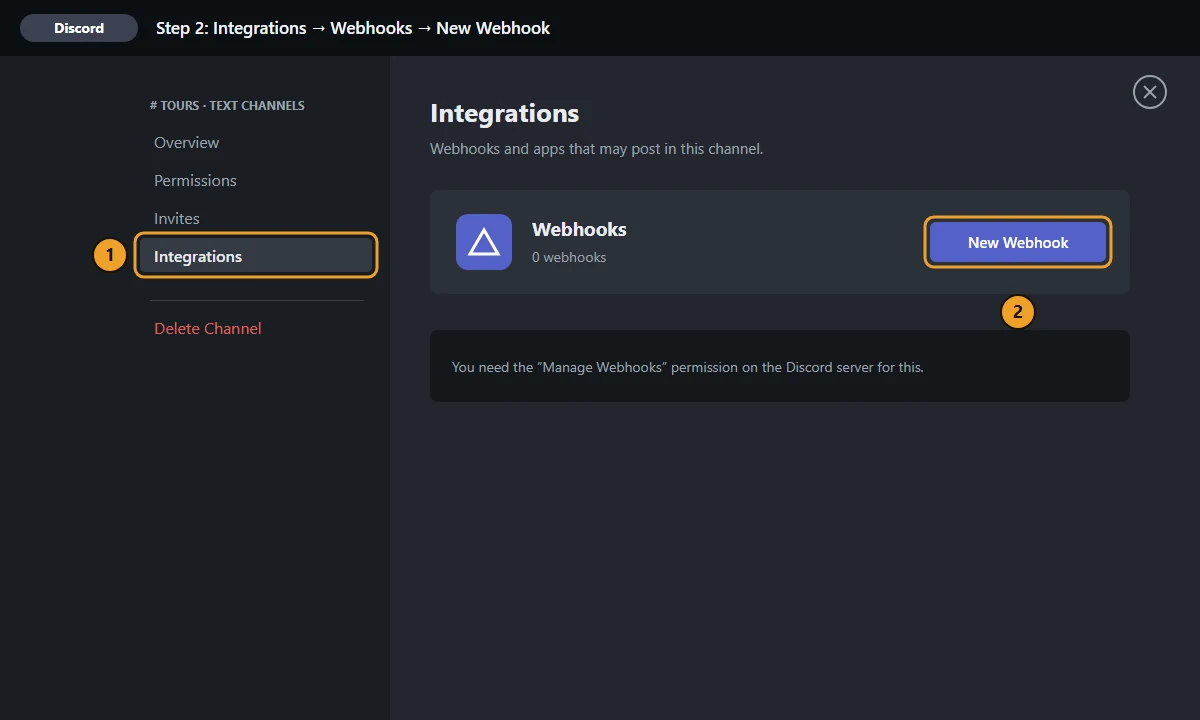
- In the channel settings choose “Integrations” on the left.
- Under “Webhooks” click “New Webhook”.
If “Integrations” is missing or the button cannot be clicked, you lack the “Manage Webhooks” permission – ask the owner of the server. The same way also exists through Server Settings › Integrations › Webhooks; there you pick the channel inside the webhook itself.
Step 3: give it a name, save, copy the webhook URL#
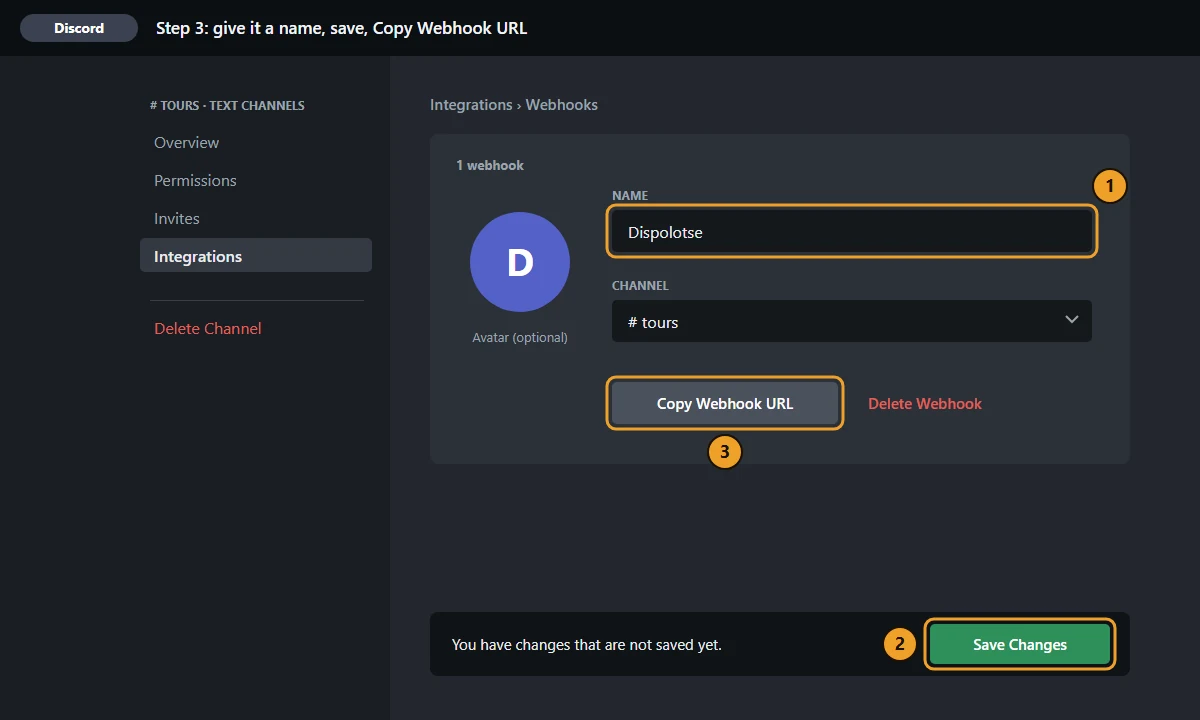
- Open the new webhook and give it a name, e.g. “Dispolotse”. The messages appear in the channel under this name. An avatar is optional.
- Check that “Channel” shows the right channel and click “Save Changes”.
- Click “Copy Webhook URL”. The address is now on your clipboard; it starts with
https://discord.com/api/webhooks/.
⚠️ The webhook URL is like a password: whoever has it can write into your channel. Paste it into Dispolotse only – never into a chat, a screenshot or a stream.
Step 4: enter the webhook URL in Dispolotse#
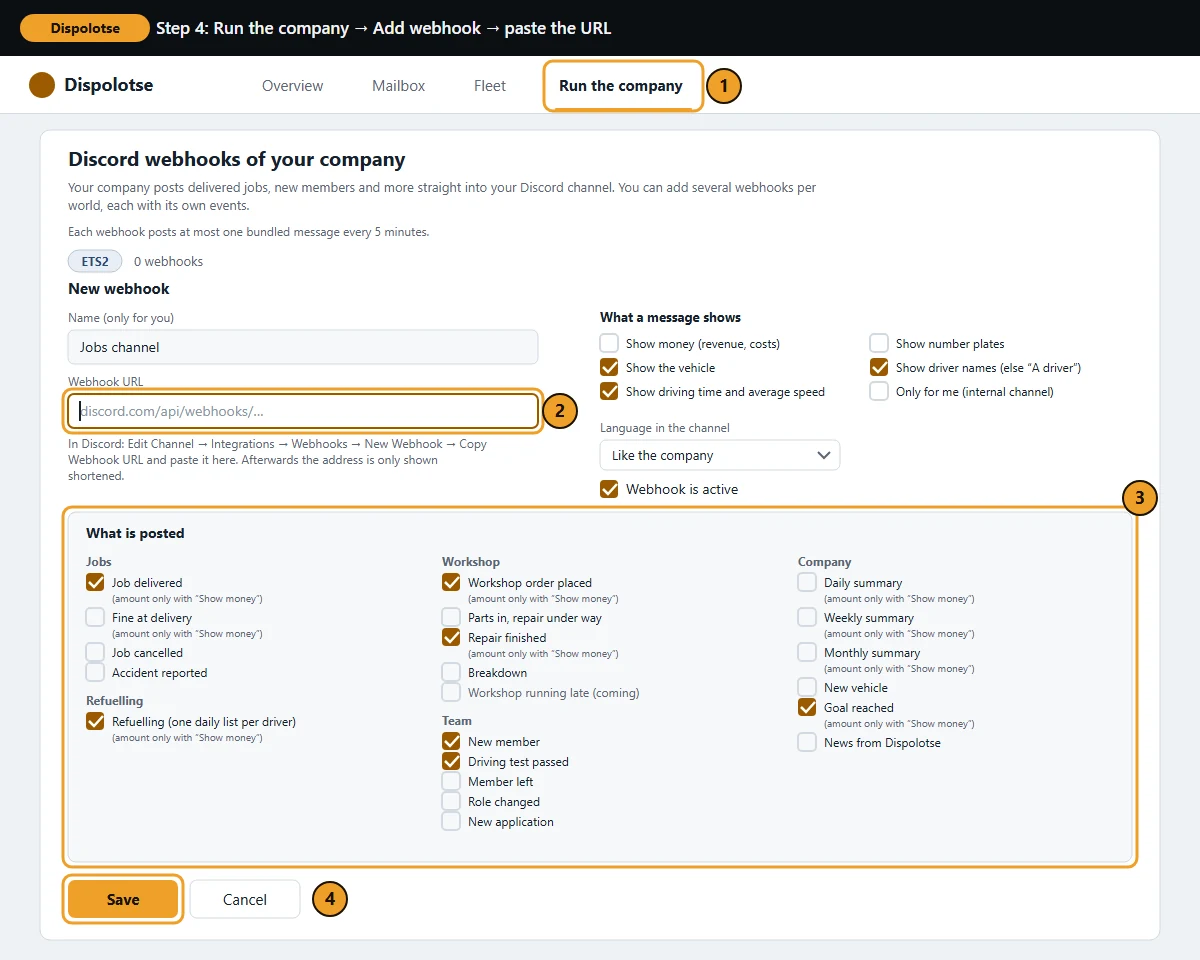
- In the browser: driver area › “Run the company” › card “Discord webhooks of your company”
- In the Windows app: “Run the company” › tab “Company” › card “Discord”
- Next to the world (ETS2 or ATS) click “Add webhook”. In the browser a world only appears once you have unlocked it.
- “Name (only for you)” – a name you recognise the webhook by, e.g. “Jobs channel”.
- “Webhook URL” – paste the copied address here (Ctrl + V).
- Under “What is posted” tick the events (see below).
- Under “What a message shows” decide what the messages may contain, plus the “Language in the channel”.
- “Save”. Afterwards Dispolotse only shows the address shortened, like
…/webhooks/1234…/****ab12.
In the Windows app a few places are named slightly differently:
| Browser | Windows app | |
|---|---|---|
| Add | “Add webhook” | “Add a channel for ETS2” / “Add a channel for ATS” |
| The field | “Webhook URL” | “Webhook URL from Discord (…)” |
| Done | “Save” | “Create channel” |
| Check | “Send test message” | “Send a test message” |
ETS2 and ATS are separate. Each world has its own webhooks: ETS2 messages go only into ETS2 webhooks, ATS messages only into ATS webhooks. You may add several webhooks per world – say one channel only for jobs and one for the workshop – or send everything into one channel. When all places of a world are taken, the page tells you.
What can be posted#
| Group | Events |
|---|---|
| Jobs | Job delivered · Fine at delivery · Job cancelled · Accident reported |
| Refuelling | Refuelling (one daily list per driver) |
| Workshop | Workshop order placed · Parts in, repair under way · Repair finished · Breakdown · Workshop running late (coming) |
| Team | New member · Driving test passed · Member left · Role changed · New application |
| Company | Daily summary · Weekly summary · Monthly summary · New vehicle · Goal reached · News from Dispolotse |
A new webhook already has these ticked: Job delivered, Refuelling, New member, Workshop order placed, Repair finished, Driving test passed and Goal reached. An event marked “(coming)” is added later – for example “Workshop running late (coming)”.
“Parts in, repair under way” reports that the ordered spare parts have arrived and the repair has started – the channel then shows “Repair under way”.
When the app detects an accident (“Accident reported”) is explained in Accidents in the statistics.
What a message shows#
- “Show money (revenue, costs)” and “Show number plates” are off until you switch them on. Without “Show money” no message carries an amount.
- “Show the vehicle”, “Show driver names (else “A driver”)” and “Show driving time and average speed” are on.
- Only the owner also has “Only for me (internal channel)”: then only he sees and manages this webhook. Who may read the Discord channel is set in Discord.
- Drivers can set the switch “Don't name me on Discord” under “Settings” › card “Your company's Discord” – in the browser and in the app. They then appear in every message only as “A driver”. More: Discord status.
- The messages mention nobody: no @everyone, no roles, no people.
Step 5: send a test message#
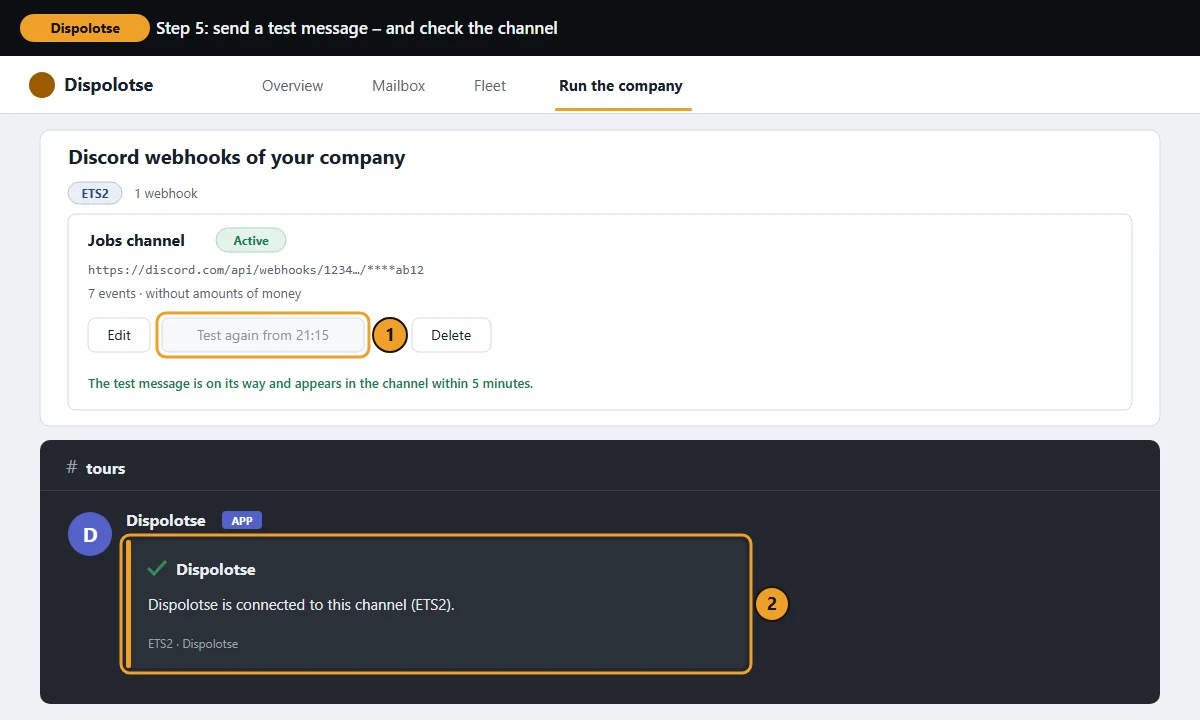
On the saved webhook click “Send test message” – this only works while “Webhook is active” is ticked. Dispolotse answers: “The test message is on its way and appears in the channel within 5 minutes.” The channel then shows: “Dispolotse is connected to this channel (ETS2).” – for an ATS webhook with “(ATS)”.
A test message can be sent at most every 5 minutes; until then the button shows “Test again from …”.
Bundled, not one by one. Per webhook Dispolotse posts at most one message every few minutes, carrying everything that happened since – how often is shown at the top of the card. A delivered job therefore appears in the channel a few minutes later. That is intended and keeps your channel tidy.
Safety: the webhook URL is like a password#
- Never post the webhook URL publicly – not in a chat, not on a screenshot, not on stream. Whoever has it can write into your channel under the webhook's name.
- After saving, Dispolotse only shows it shortened. To change it you simply enter a new one.
- If it got out anyway: delete the webhook in Discord (Edit Channel › Integrations › Webhooks › open the webhook › “Delete Webhook”), create a new one, then in Dispolotse click “Edit”, paste the new address into the field “New webhook URL (leave empty to keep it)” and save. The old address stops working.
- Pause: untick “Webhook is active” and save. Remove for good: “Delete” and confirm “Really delete?”.
If nothing arrives#
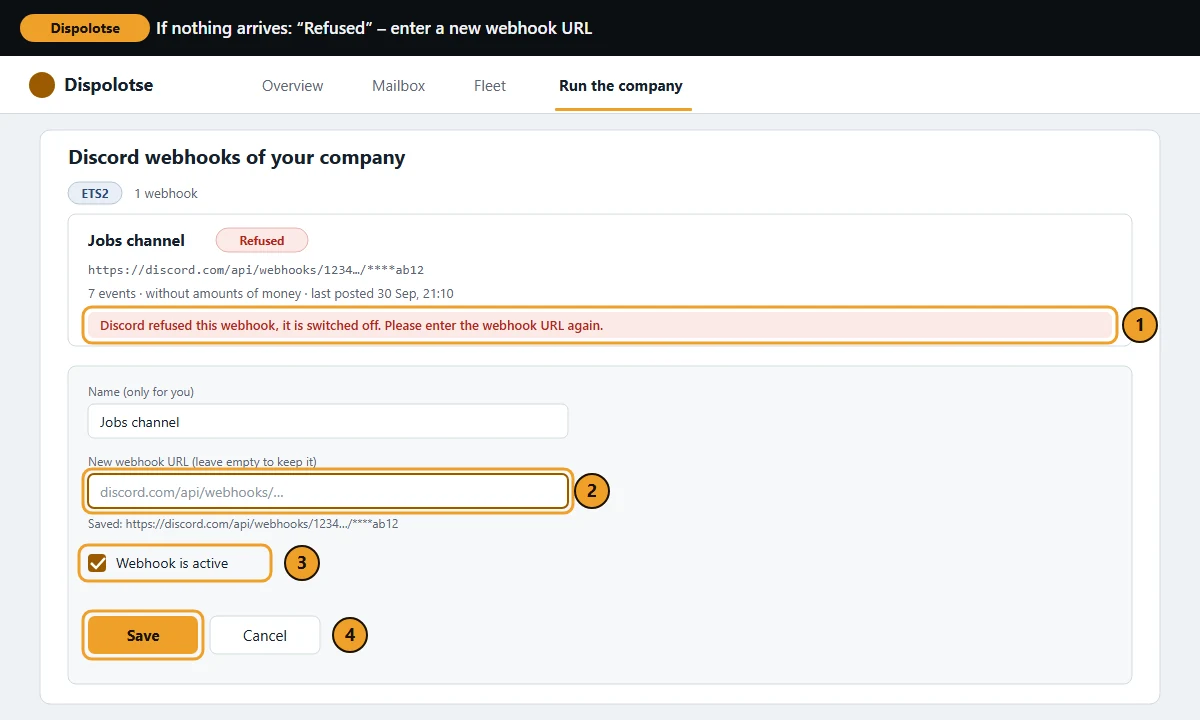
- The webhook shows “Refused”: Discord no longer knows the address – the webhook or the channel was deleted in Discord. Dispolotse then switches it off and the owner gets a message in the mailbox. To get it back: create a new webhook in Discord (Edit Channel › Integrations › Webhooks) and click “Copy Webhook URL” · in Dispolotse click “Edit” and paste the new address into the field “New webhook URL” · check that “Webhook is active” is ticked (in the Windows app: “Channel switched on”), otherwise the webhook stays off · “Save”. Messages from the time in between are dropped.
- “That is not a Discord webhook URL …” – something else was pasted, often the server's invite link. Click “Copy Webhook URL” in Discord once more.
- The webhook is off or the event is not ticked: check “Webhook is active” and the ticks under “What is posted”.
- Wrong world: an ATS job only appears in an ATS webhook, an ETS2 job only in an ETS2 webhook.
- Just wait: messages come bundled, the test message within 5 minutes.
- “Discord asked for a break — the messages go out a little later.” – Discord slows down for a moment. Nothing is lost, Dispolotse posts the messages later by itself.
- “Discord was not reachable last time” or “did not answer in time last time” – Dispolotse retries automatically.
- “… older messages were dropped because too many were waiting.” – too much had piled up and the oldest messages were dropped. New ones arrive normally again.
- Members do not see the messages: who may see a channel is set in Discord in the channel's permissions – Dispolotse changes nothing there.
- “Discord is switched off centrally right now. Your settings are kept and apply again as soon as it is back on.” – then no company posts at the moment. You do not have to do anything.
- You do not see the card at all: you lack the right – only the owner and whoever may “Edit company profile” see it.
Related
- ETS2 + ATSRoles and rightsWho may do what in a company – grades and functions, the rights in eleven areas, the log and inactivity.Companies (VTC)
- ETS2 + ATSAccidents in the statisticsHow the app detects accidents, what counts as a serious accident, where you see your accidents and who else sees them.For drivers
- ETS2 + ATSDiscord status – show what you are drivingIf you like, your own Discord profile shows the start and destination city and your cargo – only on your PC, off by default.For drivers