First start and first job
ETS2 + ATS
Set up the app, telemetry, prepare your save and drive your first job step by step.
On this page11
From installing the app to your first paid job — step by step. Allow about a quarter of an hour; most of it you only ever do once.
Before you start
Dispolotse is in beta. Back up your ETS2 save before you launch the app for the first time. The most relaxed way to play is a separate ETS2 profile just for Dispolotse — that way your long-running career stays untouched.
| You need | Note |
|---|---|
| Windows 10 or 11 (64-bit) | No admin rights needed. |
| Euro Truck Simulator 2 | The base game is enough; map DLCs are detected. |
| An internet connection | The app talks to the Dispolotse server — that is where everything is calculated and booked. |
| An e-mail address | For your free account and the confirmation code. |
1 · Install the app#
- Download — Download the single file "Dispolotse-einrichten-….exe" from the homepage (the dots are the version number) and start it with a double click. You do not need administrator rights.
- If your browser warns you — Chrome and Edge sometimes say "This file isn't commonly downloaded" for new programs. You can still download it without any problem: the file is digitally signed. Open your browser's downloads (Ctrl + J) and choose "Download suspicious file" or "Keep anyway".
- If Windows shows a blue box — "Windows protected your PC" can appear because the publisher is still new — the program is signed. Click "More info" and then "Run anyway". You never need to switch off your antivirus for this.
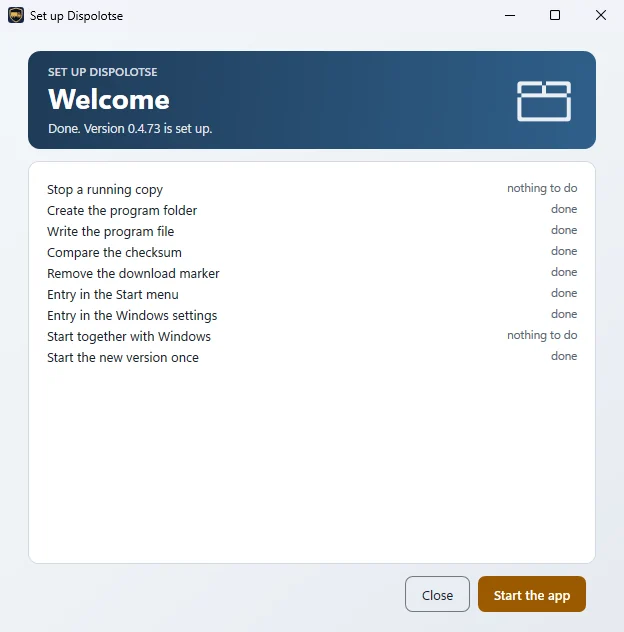
- Install — The "Set up Dispolotse" window is honest about it: "Everything will be ready in a minute." The app goes into your personal user folder; nothing on the system is changed. You get an entry in the Start menu and in Windows Settings. Tick "Start with Windows" if you like — it then starts quietly as an icon in the bottom-right corner.
- Done — Every step gets a tick, and at the end it says "Done. Version … is set up." Click "Start the app". If something goes wrong, the installer tells you — and leaves nothing half-finished behind.
Updates arrive by themselves
The app checks for a new version every time it starts — but never in the middle of a job. To check by hand: "Settings" › "Program" › "Check for updates".
If you close the window, the app keeps running in the background (icon in the bottom-right corner: "Open" / "Quit"). You can uninstall it at any time via Windows Settings › Apps › Installed apps › Dispolotse – what is deleted and what stays: Removing the app cleanly.
2 · Create your account#
Without an account the app already records your drives — but they only count once you have one. The app says so: "It is running - but it does not count yet."
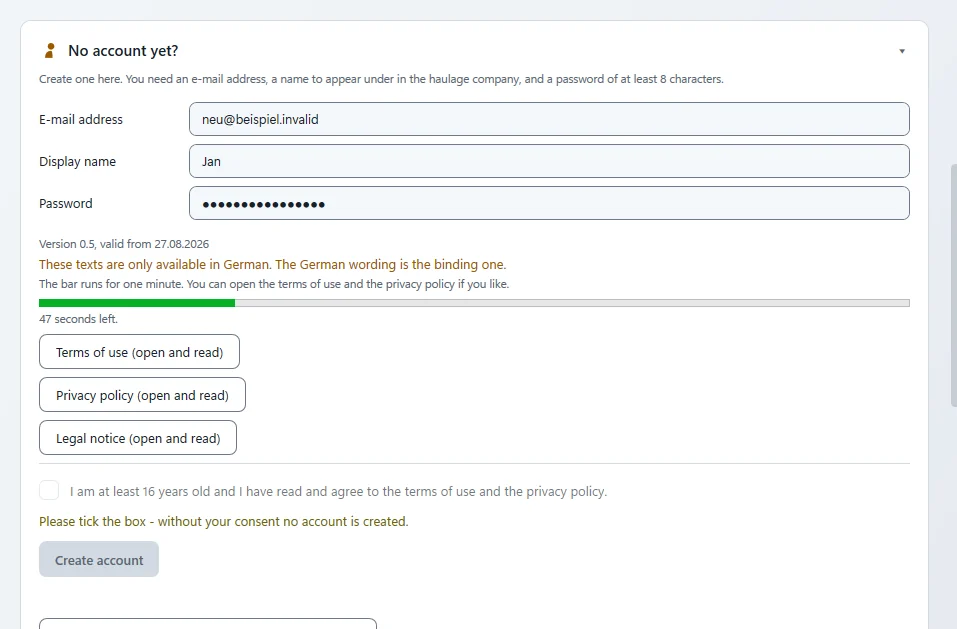
- Register — Click "Create an account". You need an e-mail address, a display name (that is how others see you) and a password.
- Read and accept the legal texts — Open the terms of use and the privacy policy and read them to the end — then you can tick the box. You must be at least 16 years old. The legal texts are in German, and the German version is the binding one.
- Confirm your e-mail — You receive an e-mail with a "Confirmation code". Enter it in the app and click "Confirm". Nothing arrived? Check your spam folder or use "Send the confirmation mail again".
- Sign in — E-mail, password and a name for this device — that is it. Only a session key is stored, never your password. One account works on several PCs.
3 · Welcome and "How do you want to live?"#
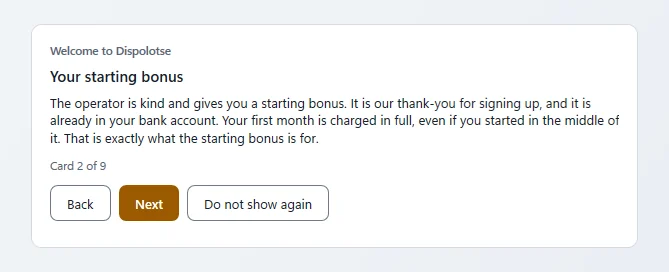
After your first sign-in, a few cards explain the essentials: You start on your own · Your starting bonus · Driving earns money · Life goes on · The freight market · Cancelling costs money · Nothing happens quietly · The ladder up · Before your first job goes into the game. You can skip them and look at them again later.
Then comes "A couple of things first": a short note on realism and the question "How do you want to live?" — Frugal, Normal, Good or Luxury. Your lifestyle decides what you spend on food and how often leisure tempts you. You can change it at any time later under My life.
4 · Set up the game and telemetry#
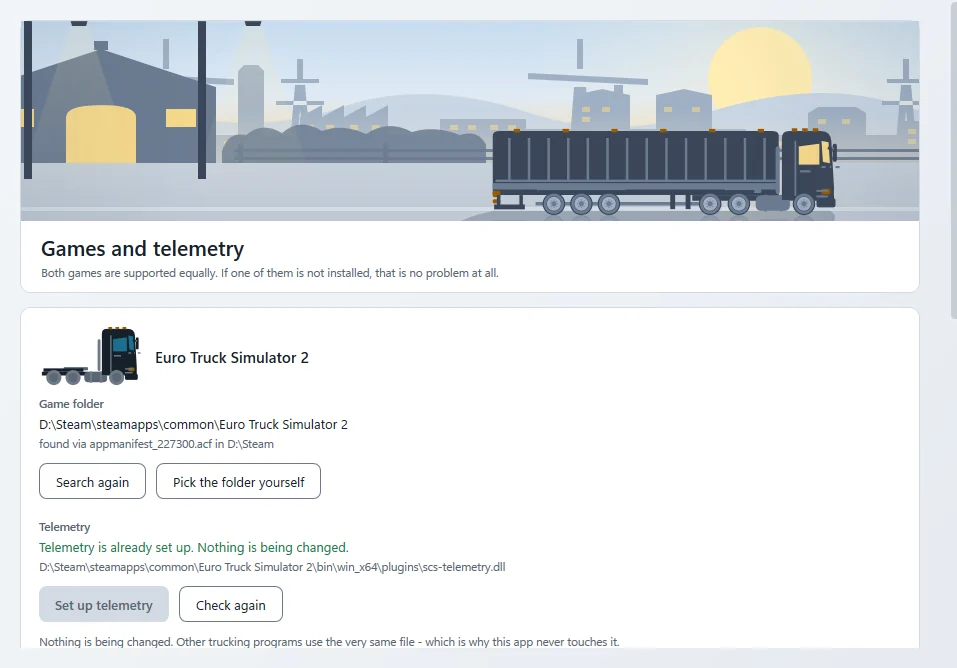
For the app to read along, the game needs a small telemetry plugin — a file from the official SCS developer kit that practically every trucking tool uses. The app puts it in the right place for you.
- Open Setup — Bottom left, click "Setup" (or, on the empty Drive page, "Go to setup").
- Game folder — The app finds your ETS2 by itself. If it cannot, choose the folder yourself. It never guesses a path — and it shows you everywhere it looked.
- Set up telemetry — Click the button to set up telemetry; the app asks first. It never touches a plugin that is already there.
- Allow it once in the game — The next time you start ETS2, the game asks once whether the plugin may read data — please accept.
How you know everything is fine
The Drive page shows a short checklist: Game folder found · Telemetry set up · Start the game and drive off. As soon as ETS2 is running it switches to "Ready when you are" — and to live values the moment you drive off.
5 · Prepare your save#
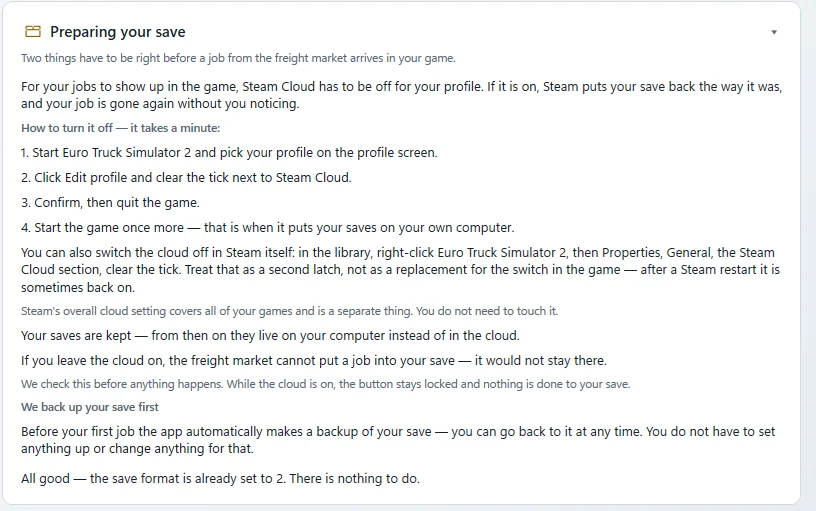
So that the app can put jobs from the freight market into your game, your profile needs two settings. You will find both under "Settings" › "Save game" › "Preparing your save":
- Steam Cloud off for this profile. In the game: edit your profile, untick Steam Cloud, confirm, quit the game and start it again. The app then shows "Cloud is off — ready to go".
- Save format 2. With "Change it now" the app does it for you (only while the game is closed, and it makes a backup first) — or you do it yourself with "I'll do it myself", following four steps it shows you.
Before your first job, the app also backs up your save automatically.
6 · Choose your map#
On the Overview you will find the "My map" tile with buttons for your map, including "Automatic" and "Base map". The easiest is to leave it on Automatic — the app reads from your profile which map you drive and shows "Map detected: …".
The map decides which jobs the freight market shows you. You do not need to pick map DLCs such as Scandinavia or Iberia separately — every job has its own line saying which map and which regions it needs.
Mods
Weather, graphics, sound, traffic and paint-job mods are fine. Mods that change money or the economy, or that rename cities, are not allowed.
7 · Your first job: from the freight market into the game#
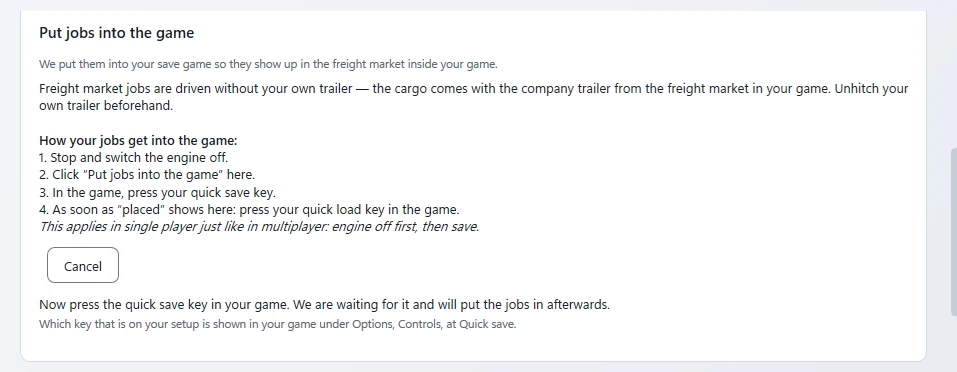
This is the routine you will follow for every freight-market job from now on. The first time it feels long — after that it takes half a minute. It is the same in single player and on TruckersMP: engine off → "Put jobs into the game" → quick save → quick load.
- Pick a job — On the left under "DRIVING" › "Freight market". Choose a job in the freight market — start, destination, cargo, weight, trailer, revenue and deadline are on the card. Click "Accept" and confirm. From then on nobody else can take it. If you have no truck of your own yet, the app asks you for the rental rate straight away (see Rent a truck).
- Stop and switch the engine off — Stop in the game and switch the engine off — in single player just as on TruckersMP. While the engine is still running, no job gets into the game. If you have your own trailer attached, detach it — freight-market jobs are driven with the client's trailer.
- Put the jobs into the game — On the freight market page, click "Put jobs into the game". The app now asks you for a quick save.
- Quick save in the game — Quick save in the game — with the quick save key set in your game under Options › Controls. The app waits up to 5 minutes for it and shows at the bottom how much time is left. Then it places the job in your save: "… jobs placed — load now."
- Quick load in the game — Quick load in the game — with the quick load key or via Menu › Load › quick save.
- Take the cargo — Open the freight market in the game. Your job is usually at the end of the list — sort by expiry or look for the start city. Take it before you save again.
- Drive off — The app recognises the job by itself: the Drive page comes alive and the overlay shows arrival and deadline.
If the app complains
It always tells you why: for example that the game is still driving or the engine is still running (stop and switch the engine off first), that Steam Cloud is still on, or that an autosave arrived instead of a quick save. If no quick save arrives at all, nothing is written — just try again. Such messages pop up in a window right in front of you, with a button to try again or to go back. If a leg does not fit your save, the app names the leg, cargo, company and city and writes nothing — your save stays unchanged; then give the order back under "My orders" with "Give it back" and take another one. With "Restore backup" (with the game closed) you can always go back to the state before.
You can also simply drive a job from the game's own freight market: it is still reported and paid — just without the freight-market bonus.
8 · Rent a truck#
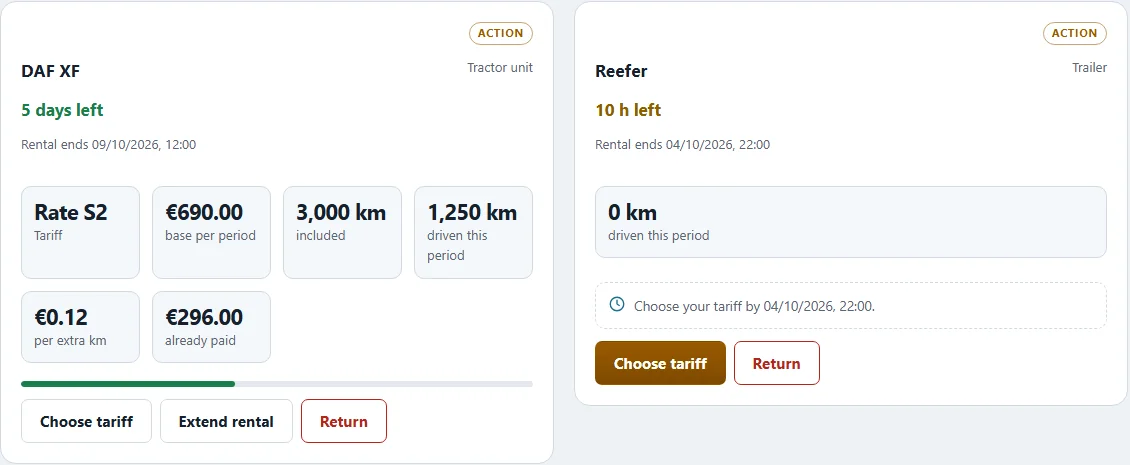
At the start you have no truck of your own. For freight-market jobs you therefore drive a rented truck — the job card tells you with "Assumed: rented truck". Under "COMPANY" › "Rental" you see your rented truck and your rented trailer.
- The rental starts when you accept. If you accept a job and have no truck of your own, the rental contract starts at once and the app asks you for the rate.
- Pick a rate. A rate runs for 7 days and includes a number of kilometres; every kilometre above that costs a small amount. The app shows both before you sign.
- It stays at the top until you choose. Until then every page shows "No rental contract for the truck yet." at the top, with the rates and a button to choose one. This band cannot be dismissed. If you do not choose within 12 hours, the most expensive rate applies.
- Debited straight away. When the contract is concluded, the rent is debited from your bank account at once. After that the vehicle card shows "Rented" with the price per 7 days, the free kilometres and the price above them.
- The bill is transparent. Your statement shows the rent and — where it applies, as a line of its own — the wear flat rate for the kilometres driven.
- Extend, switch, return. You can switch rates up to a stated date; otherwise the change applies from the next period. When you give a vehicle back, the dealer collects it.
- Quick jobs cost no rent: the truck and trailer belong to the client.
Rent or buy? Both work, and both cost in their own way. What suits you best is something you will find out for yourself.
9 · On the road#
While you drive, the app keeps count: refuelling, tolls, ferries and car trains are charged straight away — with place and time, and fuel at the pump price in the game. On the Drive page you see your route, the cargo and four gauges: driving time, fuel & AdBlue, condition, arrival & deadline.
So that you do not have to leave the game for that, there is the overlay: a small window on top of the game with the real clock time, arrival, deadline, driving time and fuel. Switch it on under "Settings" › "Overlay" › "Show overlay", and show or hide it with Ctrl+Alt+O.
Windowed, not fullscreen
The overlay only appears when ETS2 runs borderless or in a window. In exclusive fullscreen it stays invisible.
Driving time
The tachograph in the app is a display: it shows today's and this week's driving time and reminds you to take breaks. The legal limits still apply — drive too long and you can get a fine.
10 · Deliver and get paid#
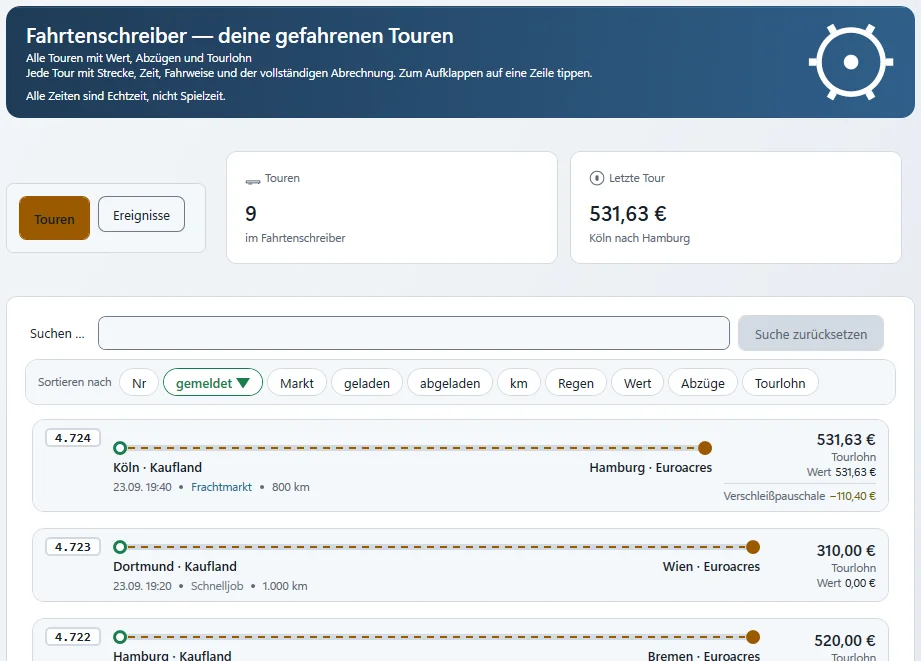
Unload in the game — that is all you need to do. The job is reported by itself, no button needed. On the Overview it appears under "RECENT JOBS", and the tachograph holds the full settlement: value, bonuses, deductions, payout. You see the money in your bank account — sometimes straight away, sometimes as "instructed" with the day it will arrive.
If you have to drop a job, use "Give it back". A few cancellations a month are free, and the app tells you how many you have left. Legs you have already driven stay paid.
If the delivery date of an accepted order has passed, the contract penalty was already booked. Then you take the order off your list under "My orders" with "Remove job" — nothing more is charged.
11 · Where it goes from here#
With every job your mileage grows, your balance grows — and so does your path: the Overview shows under "MY PATH" which level you have reached. At some point you buy your first truck, build a yard, hire drivers and run a company. And alongside, your life goes on: rent, groceries, leisure, holidays.The freight market in detailFilters, sorting, legs, bonuses.FAQWhat almost everyone wants to know at the start.
Related
- ETS2 + ATSRemoving the app cleanlyWhat is deleted when you uninstall, what is left in place on purpose – and why jobs not yet transmitted are never lost.For drivers
- ETS2 + ATSMy lifeHome, car, leisure and shopping — your life besides driving.For drivers
- ETS2 + ATSApp tourA walk through the app overview and menu.For drivers