Roles and rights
ETS2 + ATS
Who may do what in a company – grades and functions, the rights in eleven areas, the log and inactivity.
On this page9
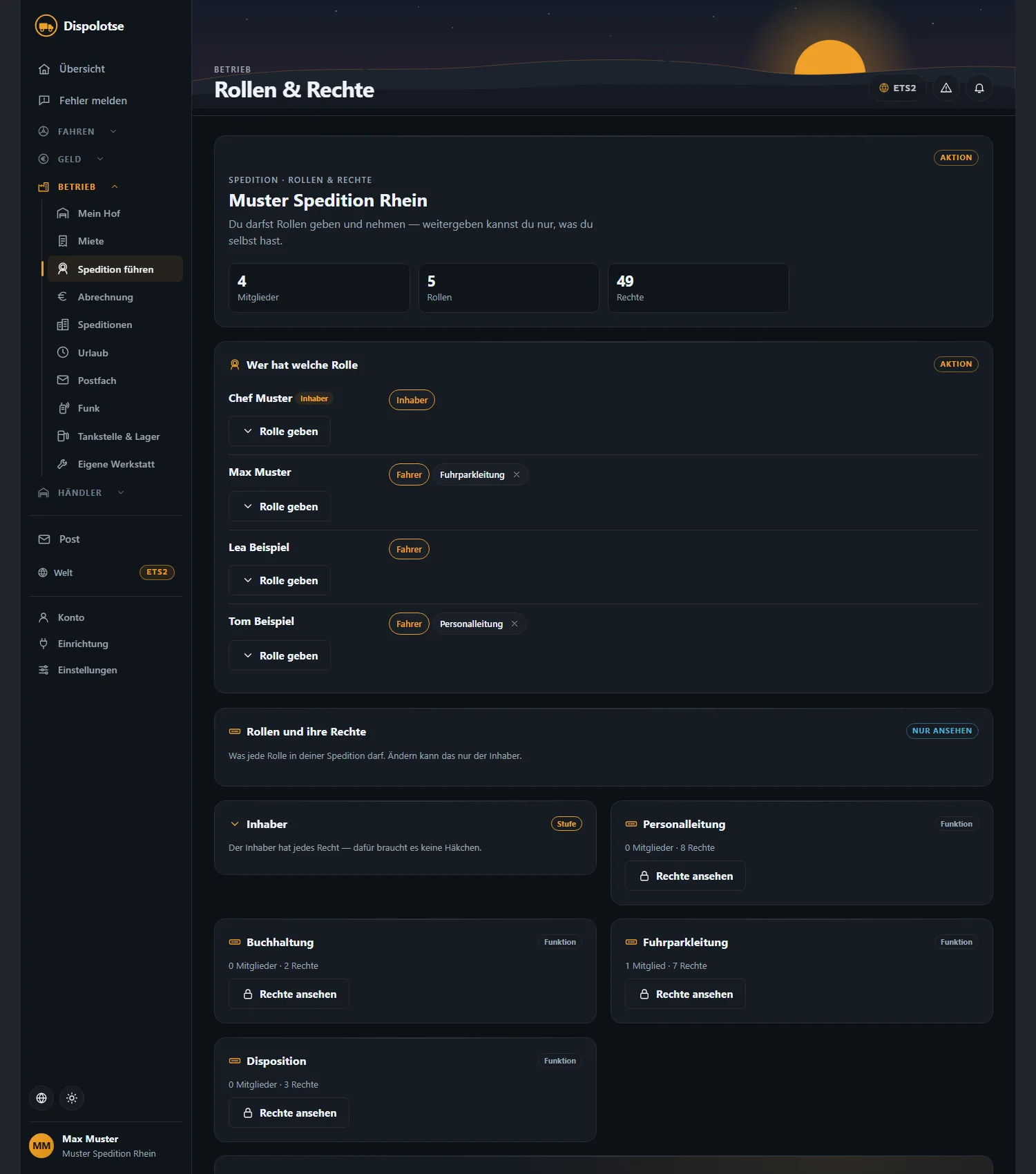
In a company not everything has to go through the owner. The owner hands out roles, and every role carries rights. You find everything on the "Roles & rights" page (on the web under "Run the company") and in the app under "My company" › "Roles".
The owner#
The owner can do everything – they need no check marks, and they cannot be granted or denied a role. Only the owner creates roles, changes their rights and deletes them.
Grades and functions#
There are two kinds of roles:
- Grade – your rank in the company, for example trial driver or driver. Everyone has exactly one grade. A grade can carry a wage, parking ("Parking: … trucks, … trailers, … extra") and automatic promotion ("From … days, … jobs, … km").
- Function – a task on top of the grade. A new company starts with Human resources, Accounting, Fleet management, Dispatch and Convoy planning. A person can hold several functions – or none ("Without a role").
The owner can rename any role (German and English), give it a colour, set its own inactivity limit, create new roles and delete roles – anyone still in a deleted role is moved.
Granting and removing roles#
- Under "Who has which role", choose "Grant role" next to the person.
- The app shows beforehand which rights the person gets with it.
- Confirm. To remove a role, click the cross on it ("Remove role").
The owner may grant roles – and anyone the owner gave the right "Assign roles". You can only pass on what you hold yourself. Nobody except the owner can give themselves rights.
The rights#
Every right belongs to an area and is one of three kinds:
- View – look at something ("you may view")
- Change – change or do something ("you may act")
- Money – something that moves company money
View rights are usually on for a new role, money rights always off – the owner switches them on deliberately. To edit: "Edit rights" on the role, tick the boxes, "Save". The change applies at once to everyone with that role.
| Area | Rights |
|---|---|
| Company | Show company · Edit company profile · Set company seat · See company file and log · See company figures · Set company goal |
| Staff | Show staff · See personnel file · See inactive members · Applications · Decide employments · Dismiss from company · Schedule and decide driving tests · Assign roles |
| Accounting | See company account · Company transfer · Company standing order · Open and close a company deposit · Change the company account plan · Loans · Payouts (pay drivers) · Order bonuses |
| Fleet | Show fleet · Assign vehicle · Buy and sell vehicles · Rent on company account · Set the internal rental tariff · Order a transfer run · Order a pickup |
| Workshop | Show workshop · Order a repair for a company vehicle · Allocate a workshop bay |
| Yard and stock | Show yard stock · Goods and warehouse · Fuel station · Order yard material |
| Dispatch | Show company orders · Dispatch (post and delete orders) · See team live |
| Settlement | Show settlement · Revoke a settlement |
| Radio | Moderate the radio (hide a message in your own channel, always with a reason) |
| Company settings | Show company settings · Company settings (change them) |
| Construction | Show plots and building works · Buy and sell a plot · Expand the yard · Hire a building crew |
The app shows every right with its exact name; the brackets here say what it is for. If a right shows "(no effect yet)", it can already be set but does not work yet.
Only the owner and whoever holds the right "Invite drivers" may invite drivers from the driver exchange – it is off for everyone by default. More: Finding and inviting drivers.
Renting needs no right: everyone in the company may rent a truck or trailer through the company – otherwise they could not drive.
What you may do yourself#
On the "Companies" page, "Your rights" lists what you may act on and view in your company. The app does not even show buttons you lack the right for. If you try anyway, it says: "You lack the right for this in this company."
Who may do what?#
Under "Who may do what" the owner sees, for every right, the people who hold it through their roles – so they can see at a glance who can move company money, for example.
The log#
The "Log of your haulage company" shows what was changed, newest first: who (a person, the automation or the platform), what, before and after. Every change of rights is recorded there. The owner and whoever holds "See company file and log" may see it.
Inactivity#
Whoever does not drive for a long time does not keep their role forever:
- Role "Inactive": the owner decides after how long without a job a driver is listed as inactive and what they may still do. As soon as they drive a job again, they get their last role back.
- Dismissal for inactivity: "Inactive members" shows a traffic light (unremarkable · due soon · due) for everyone who has not signed in for a long time. Under "When dismissal happens" the owner decides whether dismissal happens by hand or automatically – with a deadline and a warning. The owner is never affected. The account and everything driven stay with the driver.
Next#
- Money rights with a second signature: Settlement and four-eyes approval
- Wage per role: Subcontractors and employees
Related
- ETS2 + ATSFinding and inviting driversFind drivers without a company in the driver exchange, invite them, follow your invitations – and present your company with languages, games and your public advertising text.Companies (VTC)
- ETS2 + ATSSettlement and four-eyes approvalHow your drivers' money is paid out, when it may be reduced, and how the second approval for large amounts works.Companies (VTC)
- ETS2 + ATSSubcontractors and employeesThe two ways of driving for a company – pay, costs, company vehicle, promotion, leave and personnel file.Companies (VTC)