Heavy mode – build up slower, more realism
ETS2 + ATS
The switch for everyone who finds it too fast: you cut the revenue of your jobs in 5 % steps – set separately for ETS2 and ATS.
On this page7
For some people the build-up goes too fast, for others money comes too easily. That is what Heavy mode is for: a switch with which you decide how much of the revenue of your jobs actually reaches you. The default is "Off" – then nothing changes.
What the mode does#
- You pick a value in 5 % steps. A value of 20 % means: 20 % are taken off the revenue of every job.
- Only the revenue of the job is cut. Your expenses – diesel, tolls, repairs – stay as they are, and so does the per-km pay a company gives its employees.
- The cut appears on the receipt of the job as its own line, with "Heavy −20 %" and the amount.
- The higher the value, the less is left of every job – and the slower your business grows. Whether you want that, and how far, is your call.
The Heavy gauge#
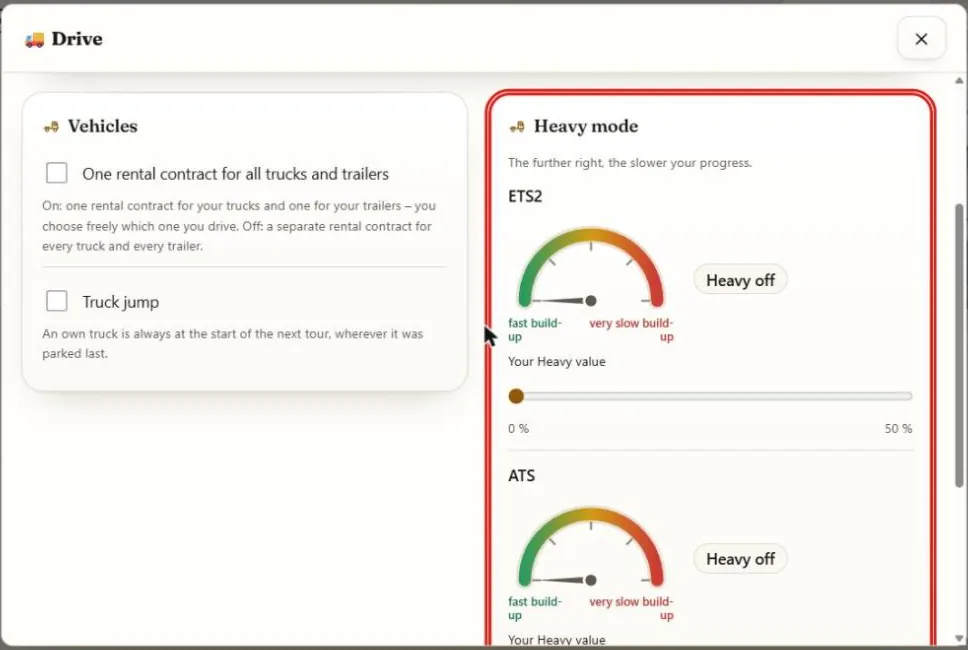
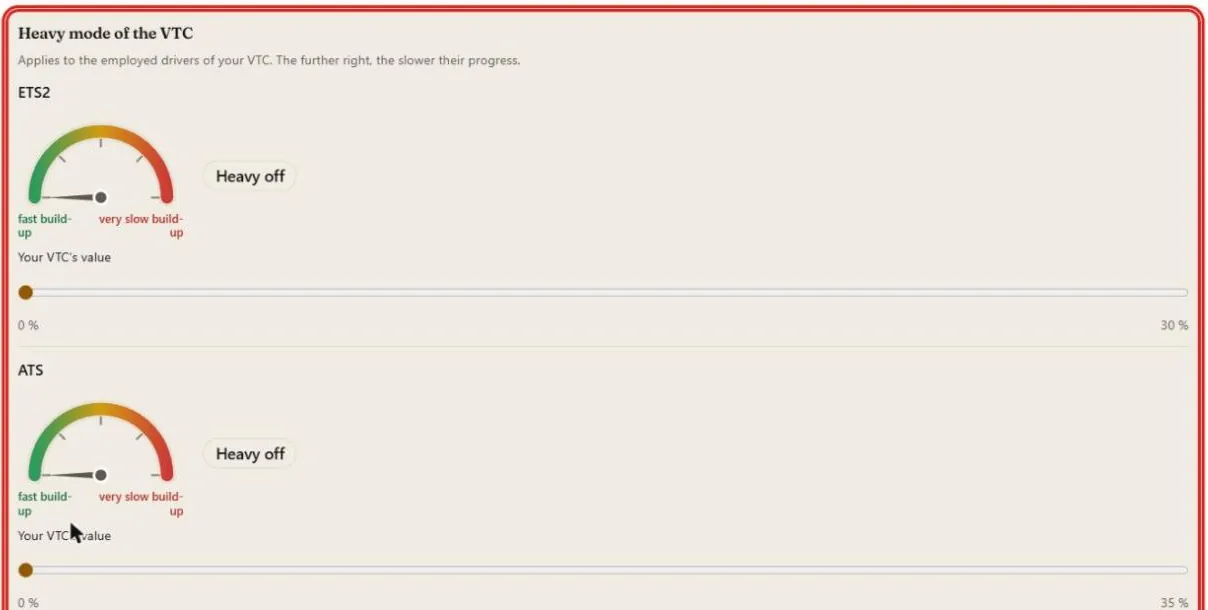
Next to the setting, a small gauge shows your value, without any numbers: green on the left for "faster build-up", red on the right for "very slow build-up". The needle follows the slider at once when you move it.
How far you can go#
The range depends on whether you drive alone or for a company, and on the world:
| ETS2 | ATS | |
|---|---|---|
| You drive alone | 5 to 50 % | 5 to 55 % |
| A company (VTC) sets it | 5 to 30 % | 5 to 35 % |
On top of that there is always "Off". You set the two worlds separately – if you like it hard in ETS2 and relaxed in ATS, set it exactly that way.
Where to set it#
In the login area – on the web or in the app, it is the same page and the same value everywhere. In the app, Heavy mode is not under "App settings".
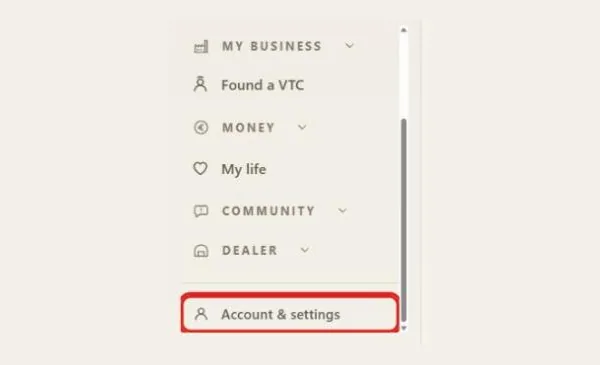
1. In the menu on the left, tap "Account & settings". On a phone: tap "More" at the bottom, then "Account & settings".
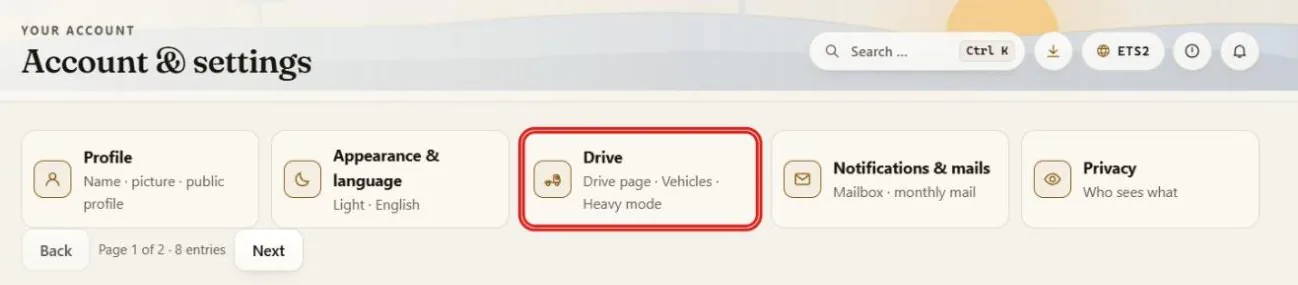
2. Open the tile "Drive" – it says "Drive page · Vehicles · Heavy mode".
3. On the right you find the card "Heavy mode": one gauge and one slider "Your Heavy value" per world (ETS2 and ATS).
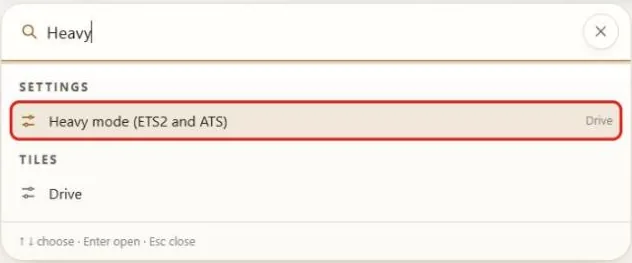
Faster: type "Heavy" into the search at the top (Ctrl+K) and pick the hit "Heavy mode (ETS2 and ATS)".
As an owner: set your VTC's value#
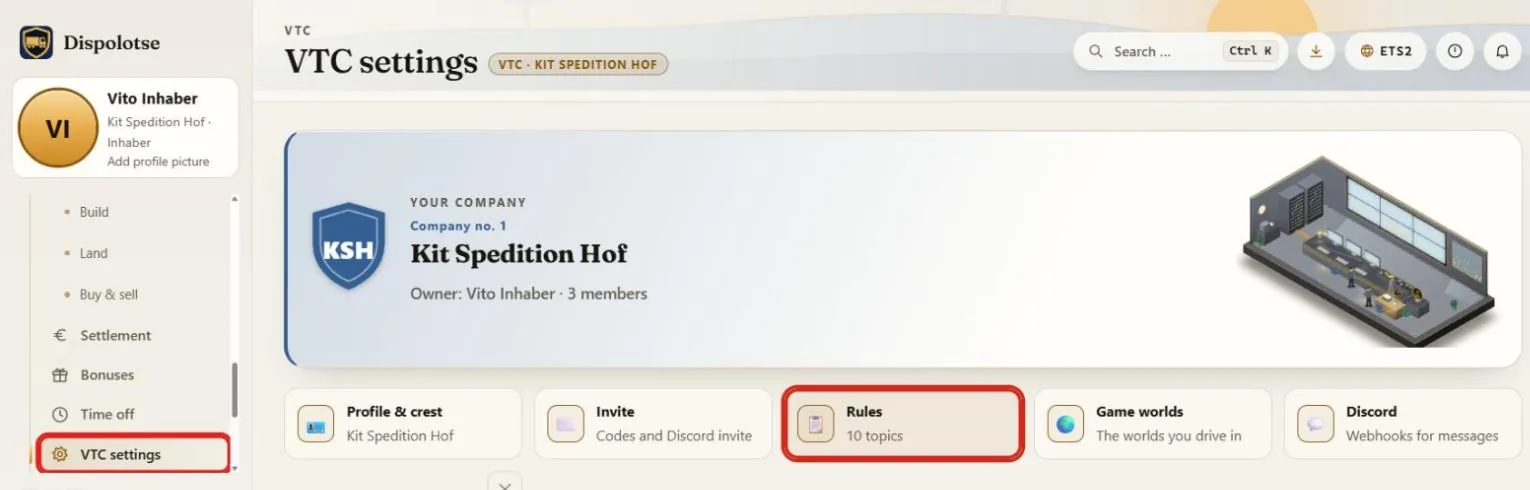
1. In the menu, open "VTC settings" and there the tile "Rules".
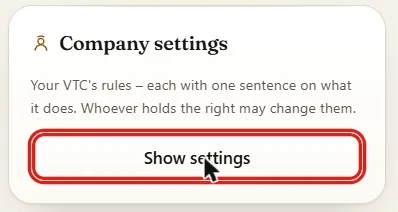
2. Under "Company settings", tap "Show settings".
3. The card "Heavy mode of the VTC" shows one gauge and the slider "Your VTC's value" per world.
When a change applies#
- You can raise or lower the value at any time – up or down, no waiting time.
- A change applies from the next order. An order you have already accepted keeps the value it had – including all legs of a chain.
- If you drive a free job from the game, i.e. one that does not come from the freight market, the value set at the start of the job applies.
If you drive for a company#
If you drive for a company (VTC), there are two cases (more on both kinds):
- Employed: the Heavy value of your company applies. This is true for the owner as well.
- Subcontractor: you stay independent – your own value applies, which you set yourself.
The company's value is set by its owner, separately per world. It applies to all employees of the company.
Where you can see the Heavy value#
- Lists and profiles show a small text badge, for example "Heavy −20 %".
- On each company's info page, in the company list and on the company's homepage, the gauge shows the company's value per world – or "Heavy off". So you know what to expect before you apply.
Note: Heavy mode changes nothing about your expenses – it cuts the revenue you get for a job.
Related
- ETS2 + ATSSubcontractors and employeesThe two ways of driving for a company – pay, costs, company vehicle, promotion, leave and personnel file.Companies (VTC)
- ETS2 + ATSCurrent account and bankCurrent account, overdraft, loan and statement — one account for ETS2 and ATS.For drivers
- ETS2 + ATSOwn yard, fuel station and storeYour yard with parking spaces, your own diesel and AdBlue station and a parts store.For drivers